
Overall, the platform operations and setup were fairly successful this time; there were no major crashes or data loss during the competition. The most frequent issue was network fluctuation caused by proxy connectivity.
Platform selection
There are not many CTF platforms available for us to choose from. Our considerations were:
- We wanted to host it ourselves and retain control.
- The platform should be adaptable through modifications.
- The UI should be attractive and modern.
- It should be open source.
The final choice after discussion was the A1CTF platform, a very mature and usable foundation.
GitHub - carbofish/A1CTF: A CTF platform designed for A1natas.
Overall, using it was an excellent experience. Thanks to the A1CTF platform.
Architecture: cloud-native hybrid container architecture
This project uses a hybrid container architecture:
- Docker Compose manages core services: used to deploy relatively “static” infrastructure (web backend, Postgres database, Redis cache). This approach is simple to configure and suitable for managing long-lived connection services.
- K3s manages dynamic tasks: the special feature of a CTF platform is that it needs to dynamically create and destroy challenge environments (Pods) for each participant/team. Kubernetes scheduling makes it easy to isolate challenge resources, clean up automatically, and manage ports.
Workflow
When a participant clicks “Start Challenge,” the data flow is as follows:
- [Participant action]: Click the button on the frontend webpage.
- [Web platform (Docker)]:
- Receives the HTTP request.
- Reads the mounted
k8sconfig.yamlfile (the “key” to K3s). - Cross-system call: The web platform acts as a Kubernetes Client and sends a command to the K3s API Server running locally: “Please start a Pod named
challenge-101-team-A.”
- [K3s cluster]:
- The API Server receives the command and the scheduler starts working.
- Pulls the image and starts the Pod.
- Assigns a random high port (for example,
31001) and maps it to the Pod.
- [Feedback loop]:
- K3s tells the web platform: “Task complete, the port is
31001and the IP is1.2.3.4.” - The web platform displays this
IP:Portto the participant.
- K3s tells the web platform: “Task complete, the port is
When the participant interacts with a challenge, the traffic flow is:
选手的电脑 <---> 服务器公网IP:31001 <---> K3s Service <---> 题目 PodOperations log
Server selection
Due to budget constraints and based on experience from previous competitions:
- More than 200 participants
- Peak number of dynamically running challenge machines under 100
For this HnuCTF competition, we selected an 8-core, 16G server from Rainyun, all-in-one, without multiple hosts.
The exact configuration is shown in the image; it is a machine in Ningbo, China:

Basic system configuration
system:
  gin-port: 8082          # 后端服务监听端口
  gin-host: 0.0.0.0       # 监听地址
  baseURL: http://ctf.hnusec.com # 平台对外的基础 URL
  trusted-proxies:        # 信任的代理 IP,用于正确获取客户端真实 IP
    - 127.0.0.1/32
    - 114.66.61.197/32    # 宿主机 IP,Nginx 转发时需要
Kubernetes integration
The backend connects to the K3s cluster through k8sconfig.yaml and exposes challenge services using NodePort mode.
k8s:
  k8s-config-file: "k8sconfig.yaml"
  node-ip-map:            # 节点名称到 IP 的映射,用于生成题目访问链接
- { name: "instance-a2lxuib0", "address": "114.66.61.197" }Note:
namemust match the node name output bykubectl get nodes.
Caching strategy
A multi-level caching strategy is used: in-process memory cache (Ristretto) + Redis distributed cache, greatly reducing database load.
cache-time:               # 内存缓存时间
  game-scoreboard: 500ms
  challenges-for-game: 1s
redis-cache-time:         # Redis 缓存时间
  user-list: 500ms
Pain point addressed: proxy networking
Because the server is in China, pulling images from Docker Hub was extremely slow or even failed. This was the biggest pain point during initial deployment.
This time we used the clash-for-linux-install project to configure a proxy environment on the server and accelerate image pulls.
Adding a node is very simple; there is no need for us to convert the proxy:
clashsub add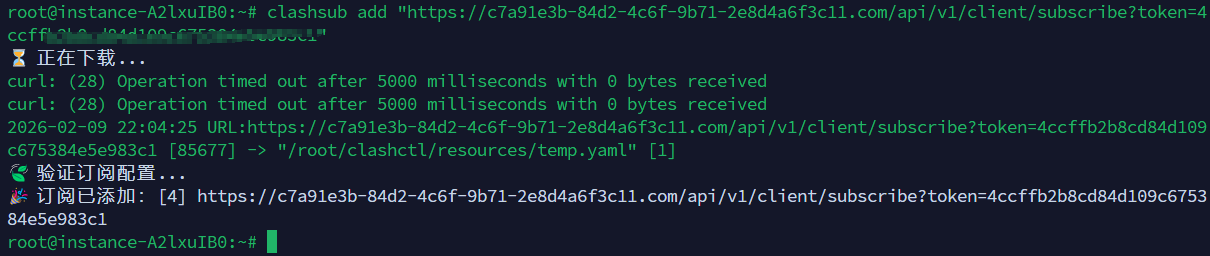
Node status can be viewed and managed directly through the UI platform:
clashui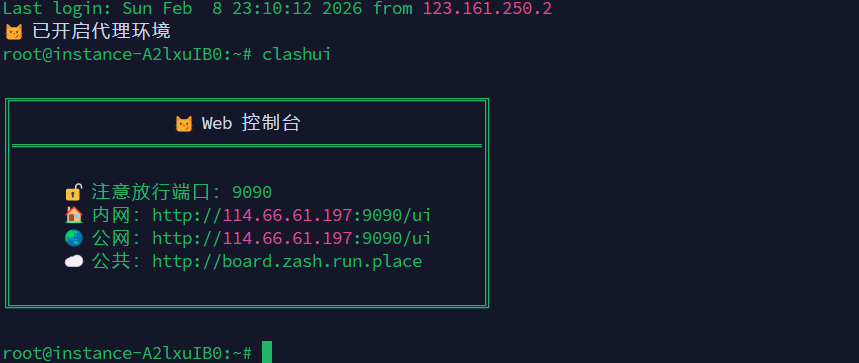
Enter the web-ui interface:
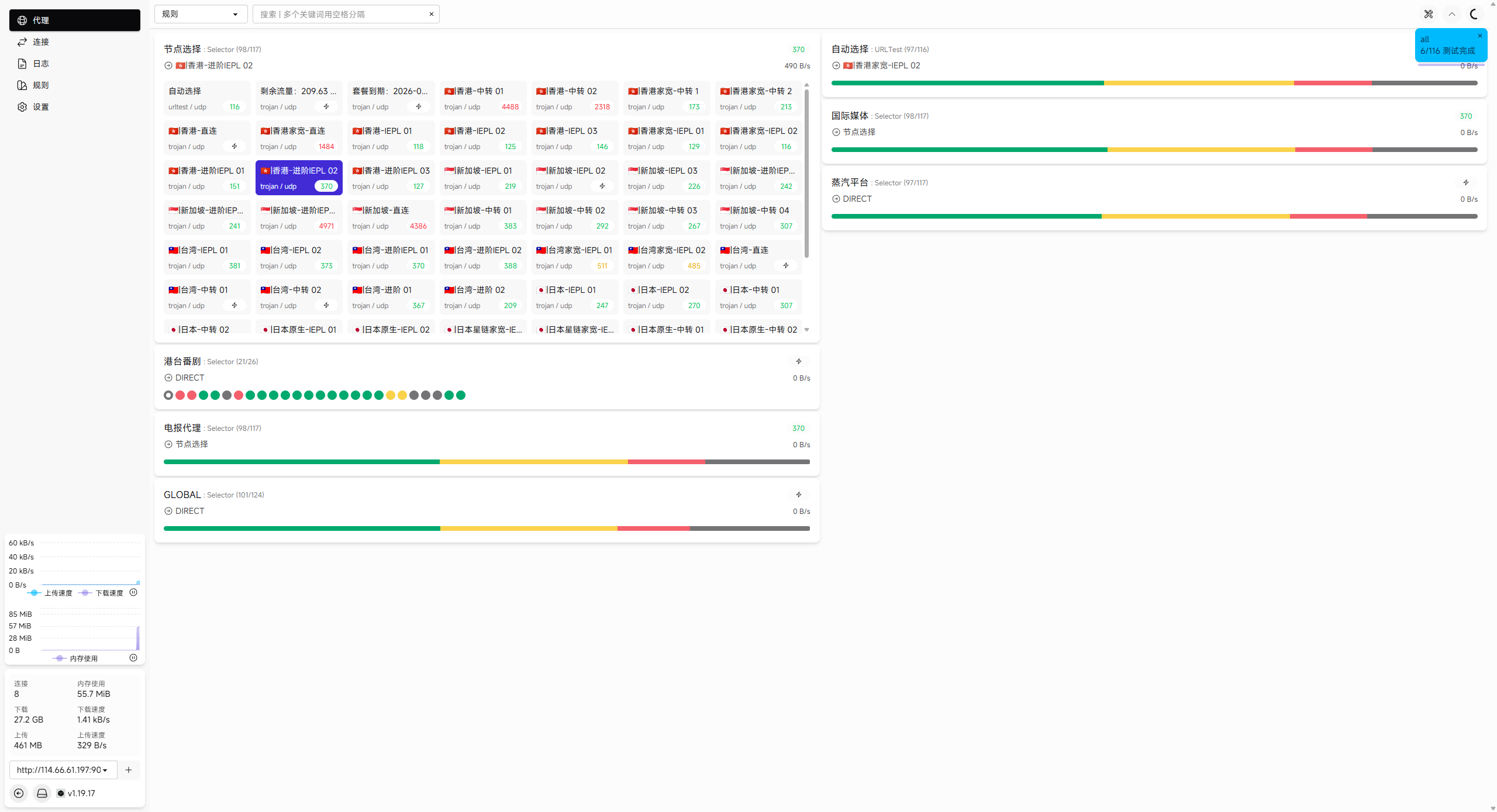
For speed, we enabled global tun mode:
$ clashtun
😾 Tun 状态:关闭

$ clashtun on
😼 Tun 模式已开启
Competition and platform observations
Operational status
Server condition during the competition; overall server status:
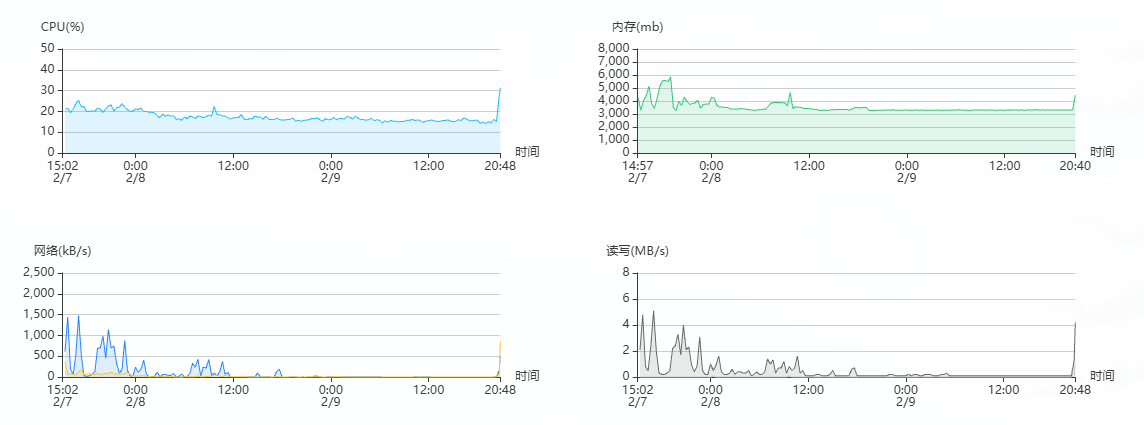
Platform monitoring:
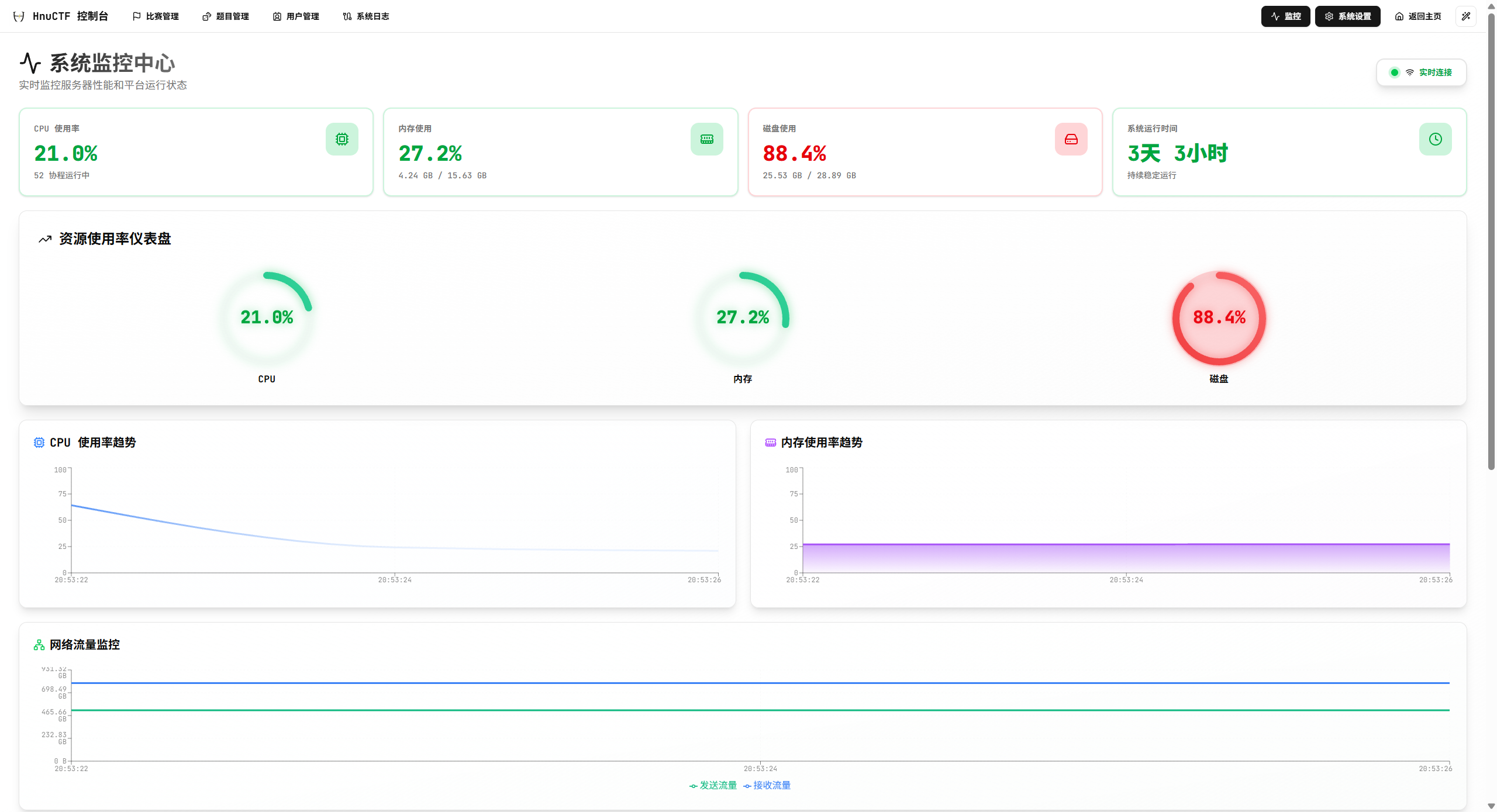
Overall, performance was actually more than sufficient; CPU usage and memory were both plentiful, but 30GB of storage was a little tight. At the peak of dynamic containers, dozens of challenge machines started simultaneously. Overall platform speed was fine, but we had to coordinate in real time around the storage shortage. Because challenge formats differ by category, it is difficult to set corresponding size limits at the K8s layer. For example, the Next.js vulnerability challenge in the web category had a container image nearly 1G in size.
Anti-cheating
Through platform anomaly events, we caught two groups submitting each other’s flags and applied a red-screen lock. The platform itself was fine.


However, we also found cases such as Re and Misc challenges being solved by stand-ins. Since we did not add hidden watermarks to each team’s attachments, we could not accurately trace them to individuals. The plan is to continue upgrading the platform’s anti-cheating feature to improve traceability.
Competition results
After 24 hours of intense competition, participants competed fiercely in every category.
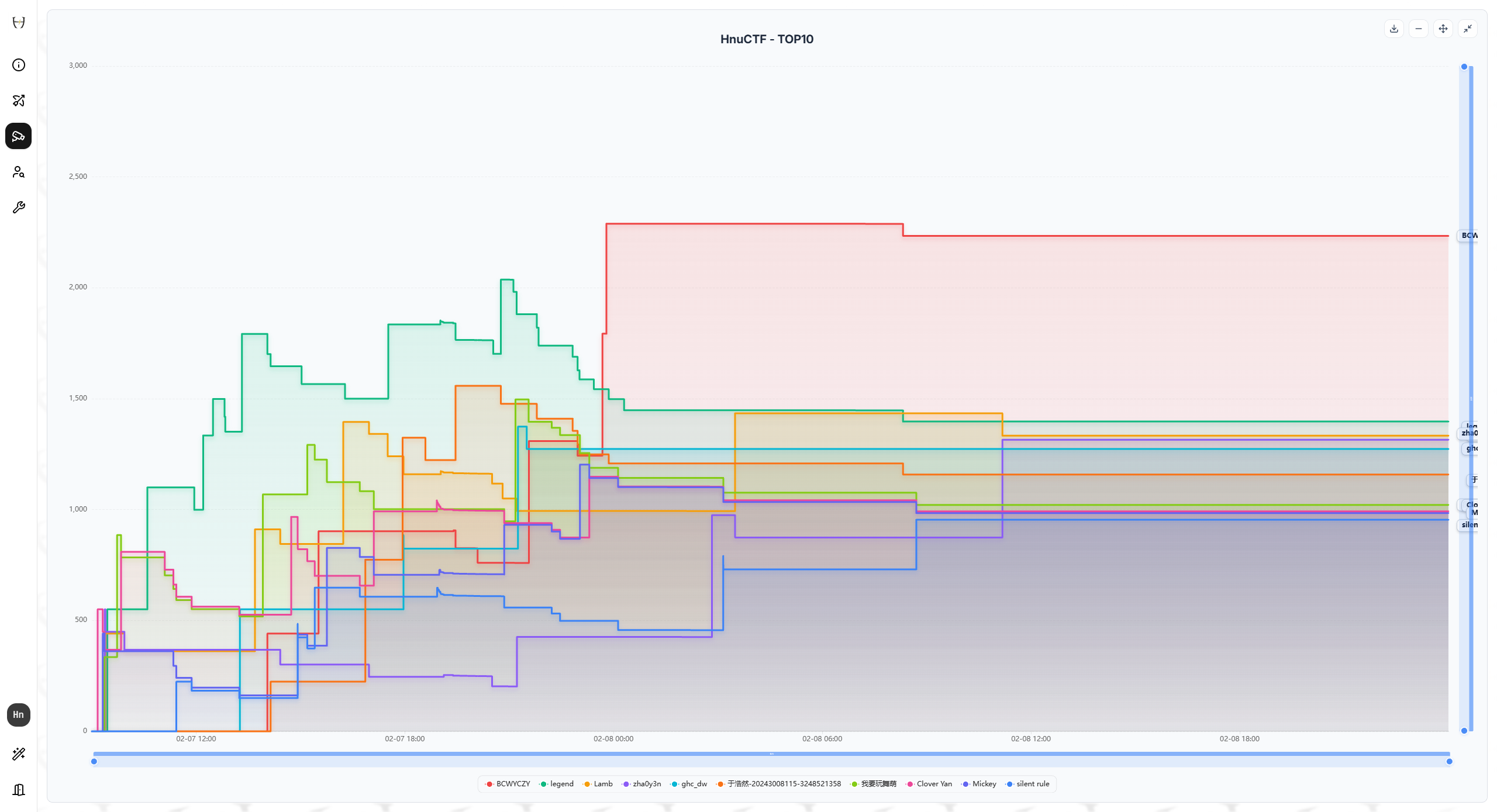
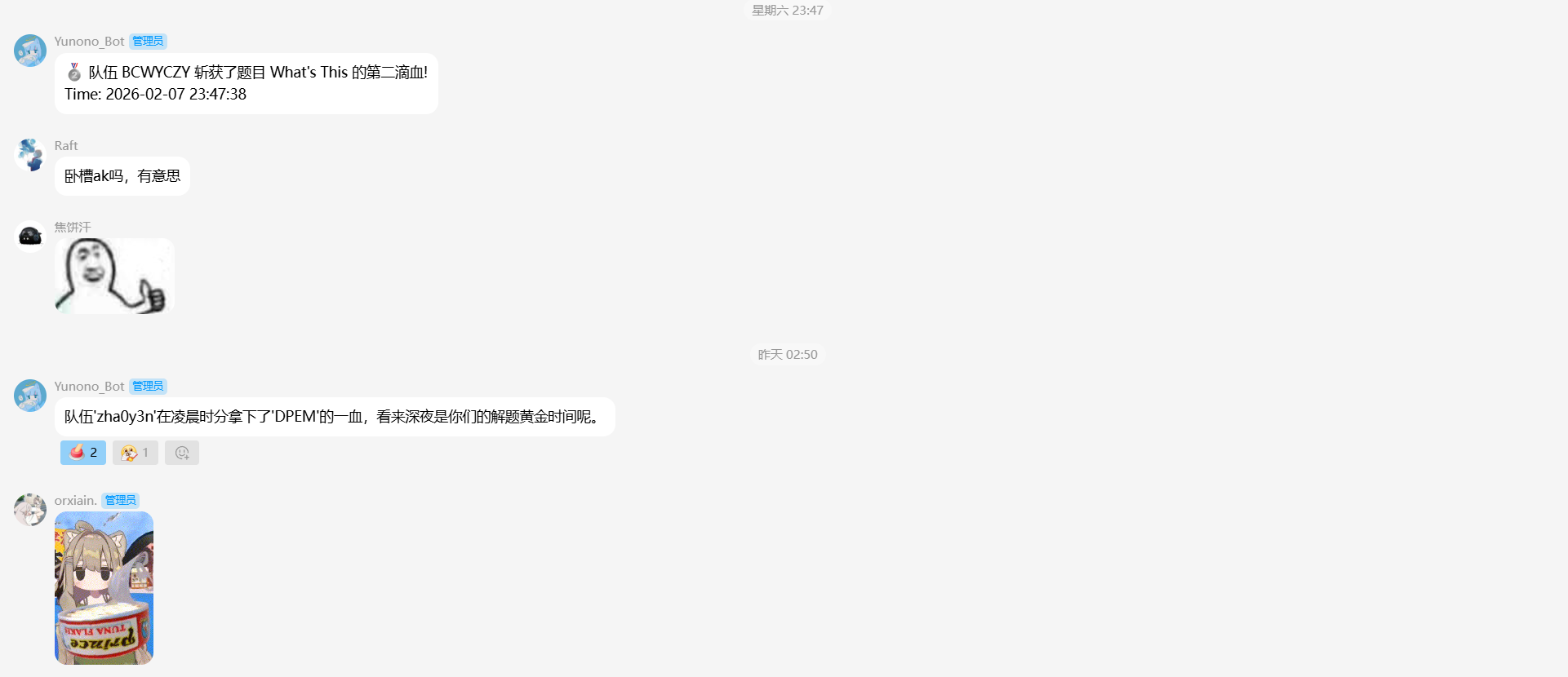
Challenges were still being solved at dawn. We deployed a competition announcement Bot specifically adapted for A1CTF in the internal QQ group (made by orixian):
Appendix: complete setup tutorial
Recording this for convenience, so that I or others can use it directly later.
1. Prerequisites
- Operating system: Ubuntu 20.04 or 22.04 LTS
- Hardware:
- CPU: 4Core+
- RAM: 8GB+ (depending on the number of challenges)
- Disk: 40GB+
- Software dependencies:
- Git
- Docker & Docker Compose
- K3s (for challenge container scheduling)
2. Installation
2.1 Install Docker
# 更新 apt 索引
sudo apt-get update

# 安装必要的证书和工具
sudo apt-get install -y ca-certificates curl gnupg

# 添加 Docker 官方 GPG key
sudo install -m 0755 -d /etc/apt/keyrings
curl -fsSL https://download.docker.com/linux/ubuntu/gpg | sudo gpg --dearmor -o /etc/apt/keyrings/docker.gpg
sudo chmod a+r /etc/apt/keyrings/docker.gpg

# 设置仓库
echo \
  "deb [arch="$(dpkg --print-architecture)" signed-by=/etc/apt/keyrings/docker.gpg] https://download.docker.com/linux/ubuntu \
  "$(. /etc/os-release && echo "$VERSION_CODENAME")" stable" | \
  sudo tee /etc/apt/sources.list.d/docker.list > /dev/null

# 安装 Docker Engine
sudo apt-get update
sudo apt-get install -y docker-ce docker-ce-cli containerd.io docker-buildx-plugin docker-compose-plugin

# 启动 Docker 并设置开机自启
sudo systemctl enable --now docker
2.2 Install K3s
HnuCTF uses Kubernetes (K3s) to dynamically generate challenge environments.
# 安装 K3s (国内建议使用镜像源或手动下载,这里使用官方脚本)
curl -sfL https://get.k3s.io | sh -

# 确认 K3s 正常运行
sudo k3s kubectl get nodes
2.3 Get the code
git clone https://github.com/Fruit-Guardians/HnuCTF.git
cd HnuCTF
3. Configuration
3.1 Configuration file (config.yaml)
Copy the example configuration file and modify it for the environment:
cp config.example.yaml config.yamlSuggestions for modifying key configuration items (vi config.yaml):
- System:
gin-host: keep0.0.0.0baseURL: change to your server’s public IP or domain (for example,http://1.2.3.4:8082orhttps://ctf.example.com)
- Postgres:
port: note the Postgres port mapped indocker-compose.yml. In the default configuration, Postgres maps to5433:5432. Since the App uses host networking, change this to 5433, and athostenter127.0.0.1orlocalhost.user/password: if the database password indocker-compose.ymlis changed, update this as well. The default username/password ispostgres/postgres.dbname: defaults toa1ctf.
- Redis:
address:localhost:6379(available in Docker Host mode)password: defaults to empty; synchronize if changed.
- K8s:
k8s-config-file: defaults tok8sconfig.yaml.node-ip-map: the node IP must be configured for challenge container port mapping.
node-ip-map:
  - { name: "您的主机名(运行 hostname 查看)", "address": "服务器公网IP" }
* `pull-secret-names`: configure an image pull secret if the challenge image is in a private registry.3.2 Kubernetes configuration (k8sconfig.yaml)
The platform needs to connect to the K3s cluster through a kubeconfig file.
# 复制 K3s 的配置文件
sudo cp /etc/rancher/k3s/k3s.yaml ./k8sconfig.yaml

# 修改权限使得当前用户/容器可读 (重要!)
sudo chown $(id -u):$(id -g) k8sconfig.yaml
sudo chmod 644 k8sconfig.yamlNote: The App runs in docker-compose.yml as network_mode: "host" by default, so the k8sconfig.yaml value server: https://127.0.0.1:6443 usually works directly. If there are connection problems, try changing it to the host machine IP (for example, 172.17.0.1 or a LAN IP).
4. Start services
Use Docker Compose to build and start the services:
# 构建镜像并后台启动
sudo docker compose up -d --build
Check the logs to confirm normal operation:
sudo docker compose logs -f app5. Follow-up steps
- Visit the platform: Open
http://<服务器IP>:8082in a browser (default port). - Administrator account: The first registered user is root.
- Challenge management: Log in to the admin console to add challenges and configure challenge images and ports.
6. Common issues
- Database Connection Failed:
- Check whether the Postgres port in
config.yamlis5433(corresponding todocker-compose.yml). - Check whether the
postgrescontainer is healthy (docker ps).
- Check whether the Postgres port in
- K8s Cluster Connect Failed:
- Check whether
k8sconfig.yamlexists and has read permissions. - Check K3s service status:
systemctl status k3s.
- Check whether
- Challenge container cannot be accessed:
- Check whether the server firewall (UFW/Security Group) allows the NodePort range (default 30000-32767).
- Check whether
config.yamlhasnode-ip-mapconfigured with the correct public IP.