
WiFi security testing involves three distinct questions: discovering a network, establishing a protected connection, and determining whether application data is exposed. SSIDs and security modes describe advertised capabilities; association and key negotiation determine the protection actually used. Captures are also constrained by observation position, channel coverage, and access to session keys.
The lab uses Kali inside VMware, a UGREEN AC1300 USB adapter, and a test phone. The wireless interface is called wlan0. The sections cover adapter preparation, discovery, authentication and keys, over-the-air analysis, a simulated AP, availability, and password auditing. Screenshots document observed behavior; protocol analysis and offline commands explain how to verify it without presenting uncollected session data as measured results.
Device addresses, neighboring network names, and personal interface details have been redacted for publication. Technical fields and experimental counters are retained.
Scope and observation conditions
- 01Passive capture without keys
- Receivable management frames, addresses, timing, and external properties of protected framesEncrypted payload is not readable application content
- 02An analyzer with session-decryption material
- Decrypted link-layer payloadApplication protection such as TLS must still be examined
- 03An ordinary connected client
- Its own connection, assigned address, and reachable servicesA client has a different view from an external listener
- 04A simulated AP and management platform
- Client requests, platform discovery, and response eventsAP logs must be checked against actual client state
Which frames appear in a CAP file is a capture result. Which protection a connection uses is a protocol state. Assessing risk requires relating both to the actual observation conditions.
Choosing an external adapter and preparing the environment
Lab hardware and identification
The UGREEN AC1300 dual-band, dual-antenna USB adapter connects through a dock and is passed directly to Kali using VMware USB passthrough:
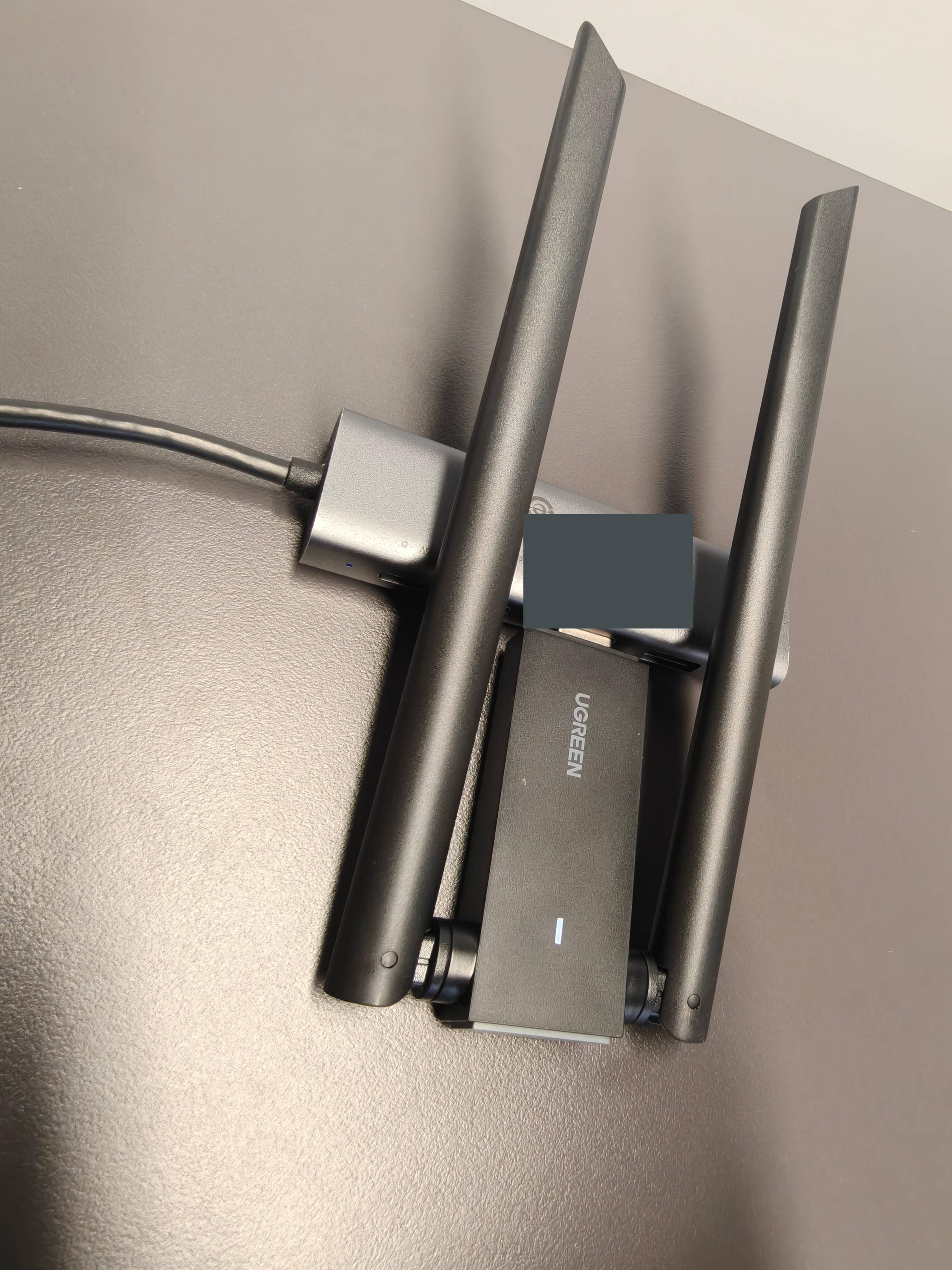
An adapter has three different descriptions: the product page provides sales specifications, its USB ID identifies the device to the system, and the Linux driver determines its usable capabilities. Record marketing specifications, chipset identification, and driver support separately.
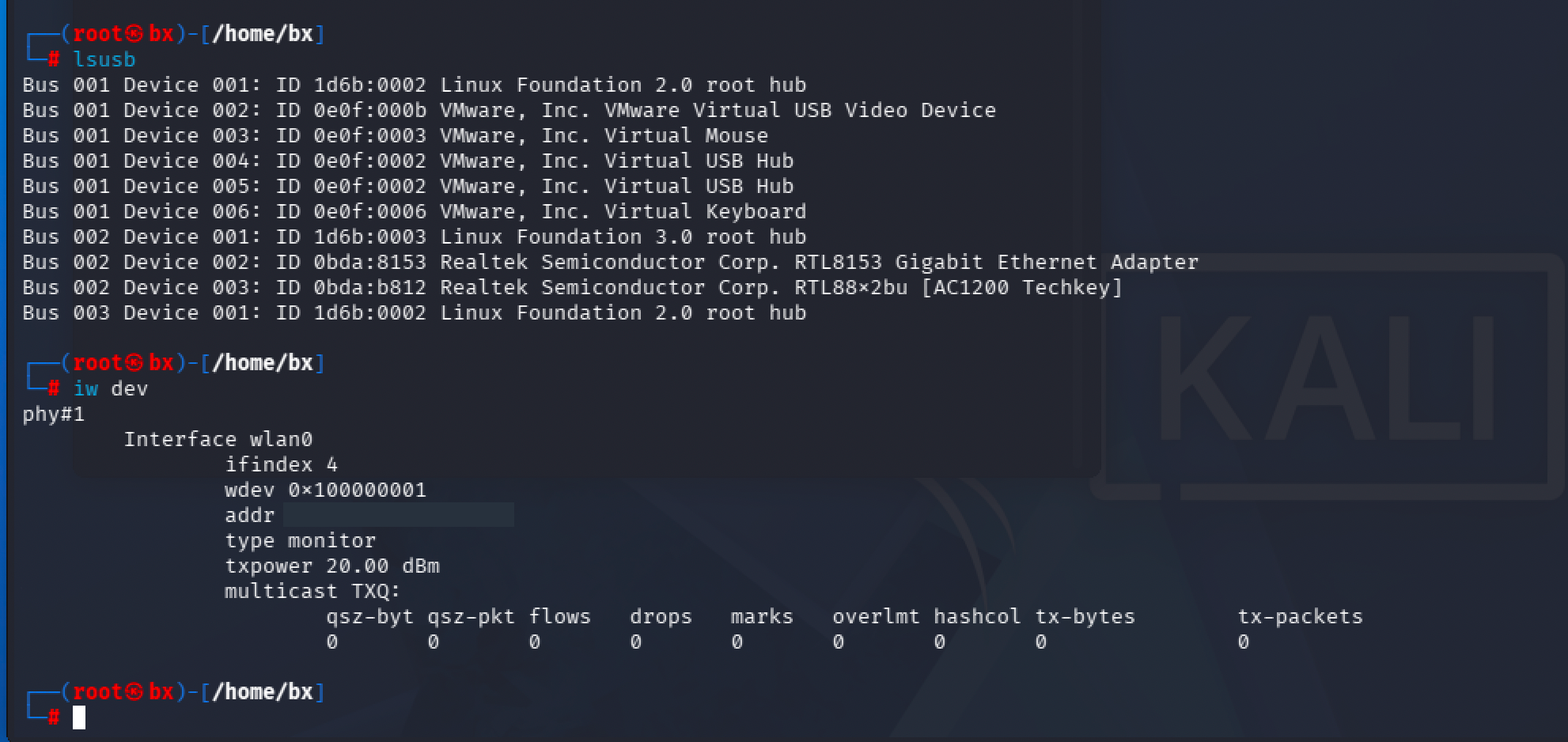
The relevant lines are:
ID 0bda:8153 Realtek Semiconductor Corp. RTL8153 Gigabit Ethernet Adapter
ID 0bda:b812 Realtek Semiconductor Corp. RTL88x2bu [AC1200 Techkey]

phy#1
    Interface wlan0
        type monitor
0bda:8153 identifies a Gigabit Ethernet device; 0bda:b812 identifies the wireless adapter. Techkey is merely the USB ID database description, not evidence against the physical device being UGREEN-branded.
The mainline Linux rtw8822bu device table, pinned to v6.14, includes 0xb812. The device can therefore be recorded as belonging to the RTL88x2BU family; the exact package and hardware revision still require its label. The screenshots do not establish the kernel version or loaded module. Check those separately using the commands below.
Show the AC1300 product listing captured at purchase
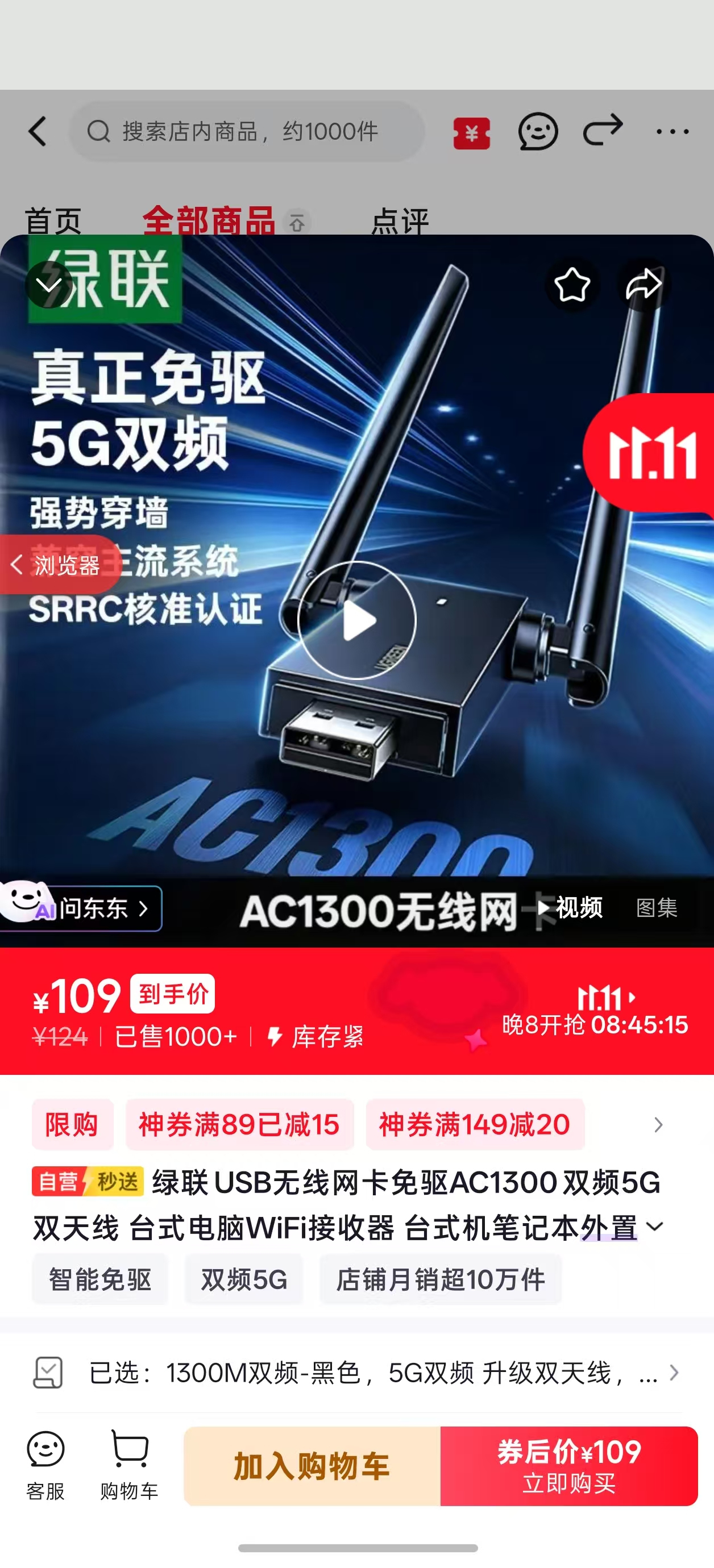
“Driver-free” depends on the supported operating system. AC1300 is a rate class, not measured throughput or proof of monitoring or injection support. UGREEN provides separate Linux drivers for its AC1300 series and AX1800 series; verify the model and product code before downloading.
Selection criteria and chipset comparison
For discovery, Beacon/RSN inspection, and ordinary captures, prioritize mainline drivers, the required bands, and stable sustained reception. A newer WiFi generation alone is not a reason to complicate a 2.4/5 GHz setup. For 6 GHz, check radio capability, kernel, firmware, and locally permitted channels together.
Six independent checks · expand for common pitfalls
01Chipset and revisionProduct code, hardware revision, and USB VID:PID
Common pitfallAn identical enclosure or similar model name does not establish an identical chipset
02Linux supportKernel, module, firmware, and matching USB ID
Common pitfallWindows support does not imply Kali support
03Operating modesSeparate support for managed, monitor, and AP
Common pitfallMonitoring does not automatically imply AP or injection support
04Bands and channels2.4/5/6 GHz, channel restrictions, DFS, and bandwidth
Common pitfallWiFi 6 does not guarantee 6 GHz; dual-band does not mean simultaneous monitoring
05USB and powerPassthrough, controller, cable, dock, and disconnect logs
Common pitfallSuccessful USB enumeration does not establish stable wireless reception
06Reception qualityBeacon continuity, signal, and error logs at a fixed location
Common pitfallMore antennas or a higher advertised rate does not guarantee better captures
Distinguish WiFi 6 from 6E: WiFi 6 does not automatically include 6 GHz. Antenna count is neither spatial-stream count nor the number of independent radios. Spatial-stream capability depends on the chipset and hardware design. A single dual-band adapter generally cannot fully capture two different channels simultaneously.
Show chipsets, example devices, and Linux drivers as a selection aid
| Chipset family / example device | Bands and generation | Linux driver path | Trade-off |
|---|---|---|---|
| AR9271 / AWUS036NHA | 2.4 GHz, 802.11n | ath9k_htc, with matching firmware | Useful for 2.4 GHz learning and comparison; no 5 GHz coverage |
| MT7612U / AWUS036ACM | 2.4/5 GHz, 802.11ac | Mainline mt76 family, commonly mt76x2u | A candidate for dual-band capture; verify the actual target channel |
| MT7921AUN / AWUS036AXML | 2.4/5/6 GHz, 802.11ax | mt7921u; USB support starts with Linux 5.18 | Consider when 6 GHz is required; check firmware and regulatory domain |
| RTL8812AU family | 2.4/5 GHz, 802.11ac | Newer kernels provide an rtw88 path; older guides use out-of-tree drivers | Assess the installed kernel rather than copying old DKMS instructions |
| RTL88x2BU family / this adapter | 2.4/5 GHz, 802.11ac | Inspect ethtool -i: mainline uses rtw_8822bu, or check the actual out-of-tree module | Monitor mode was observed here; sustained capture, AP mode, and injection need separate validation |
Band and driver references include Linux Wireless on MediaTek, the ath9k_htc documentation, ALFA ACM documentation, and AXML specifications.
Older Realtek advice needs updating. Linux 6.14 rtw88 configuration includes RTL8812AU. The Aircrack-ng rtl8812au repository is marked DEPRECATED and recommends a mac80211 driver through the external lwfinger/rtw88 repository, which is not the mainline kernel. “AU/BU always require an old out-of-tree driver” is not a universal rule. Distribution kernel options, device IDs, and actual operating modes still matter.
VMware: USB passthrough is not network bridging
Internet access inside a VM proves only that its virtual network works. NAT and ordinary bridging give Kali a virtual Ethernet interface; they do not expose the host WiFi radio’s channel controls or 802.11 frames. For over-the-air capture, connect the USB adapter to the guest in VMware, then inspect lsusb and iw dev inside Kali. The Kali FAQ also distinguishes direct wireless hardware access in virtual machines.
Record the kernel, USB device, driver, and wireless interface before changing modes. Use the interface reported by iw dev:
uname -r
lsusb
lsusb -t
iw dev
iw list
iw reg get
ethtool -i wlan0
readlink -f /sys/class/net/wlan0/device/driver
ethtool -i and the sysfs path identify the driver actually in use; the mainline driver appears as rtw_8822bu. Out-of-tree DKMS modules can fail to rebuild after kernel upgrades, and Secure Boot can reject unsigned modules. Successful installation is not proof that the module loaded.
Inspect Supported interface modes, valid interface combinations, and the frequency list in iw list. Support for monitor, support for AP, and concurrent interfaces are separate capabilities. Channels marked disabled, no IR, or subject to DFS impose additional restrictions. Validate in order: enumeration and driver binding → monitor mode → sustained capture on a fixed channel → disconnects, Beacon continuity, and USB reset/firmware errors. Test injection and AP mode separately.
Discovering access points
Beacons and scanning
How can a phone show nearby WiFi names before connecting to a network or knowing its password?
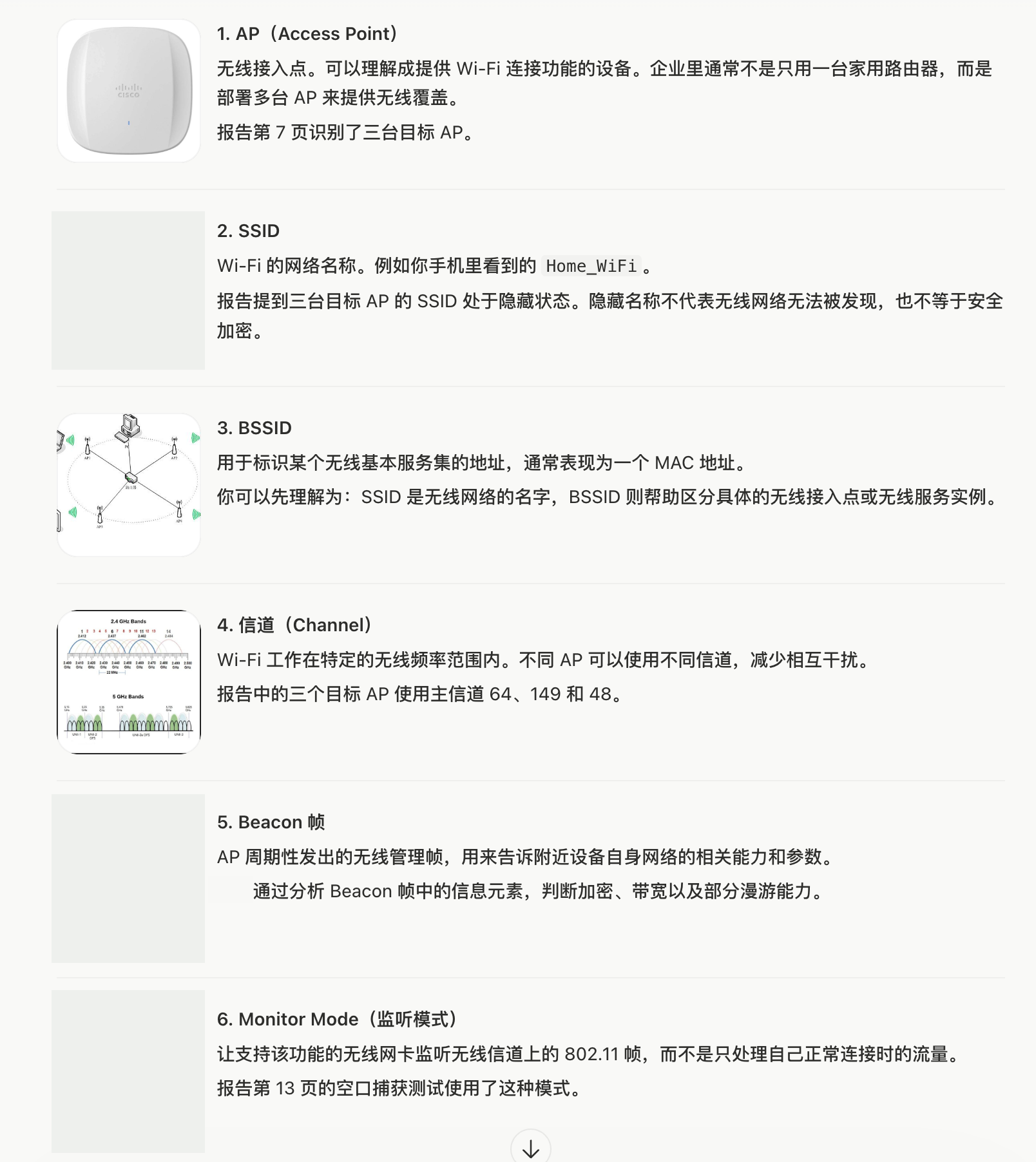
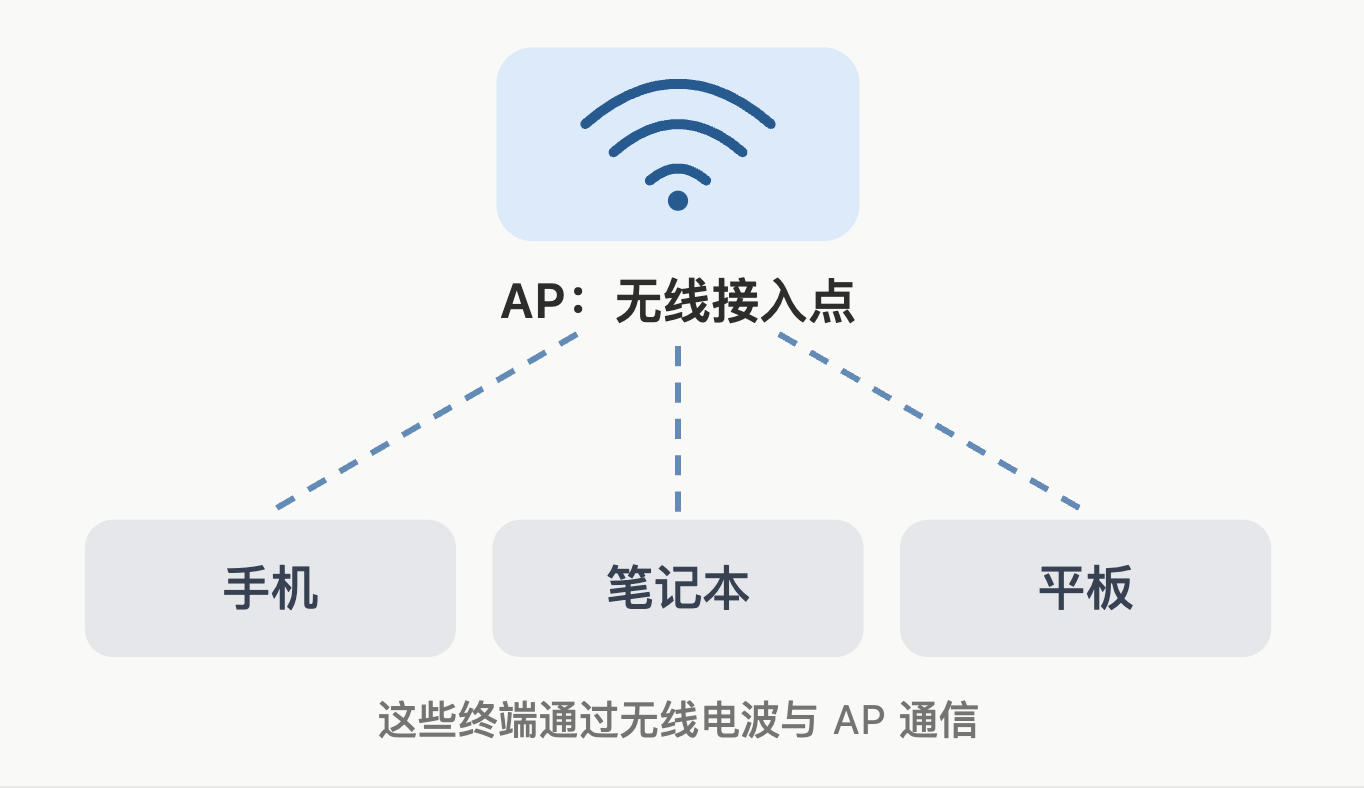
An AP (Access Point) provides wireless access; an STA (Station) is a client such as a phone or computer. Home routers usually include AP functionality, but access points, routing, and Internet connectivity are distinct. The answer is the Beacon: an AP periodically broadcasts this management frame, containing the SSID, supported rates, channel information, and RSN capabilities. The BSSID is in the frame header. No password is needed for discovery.
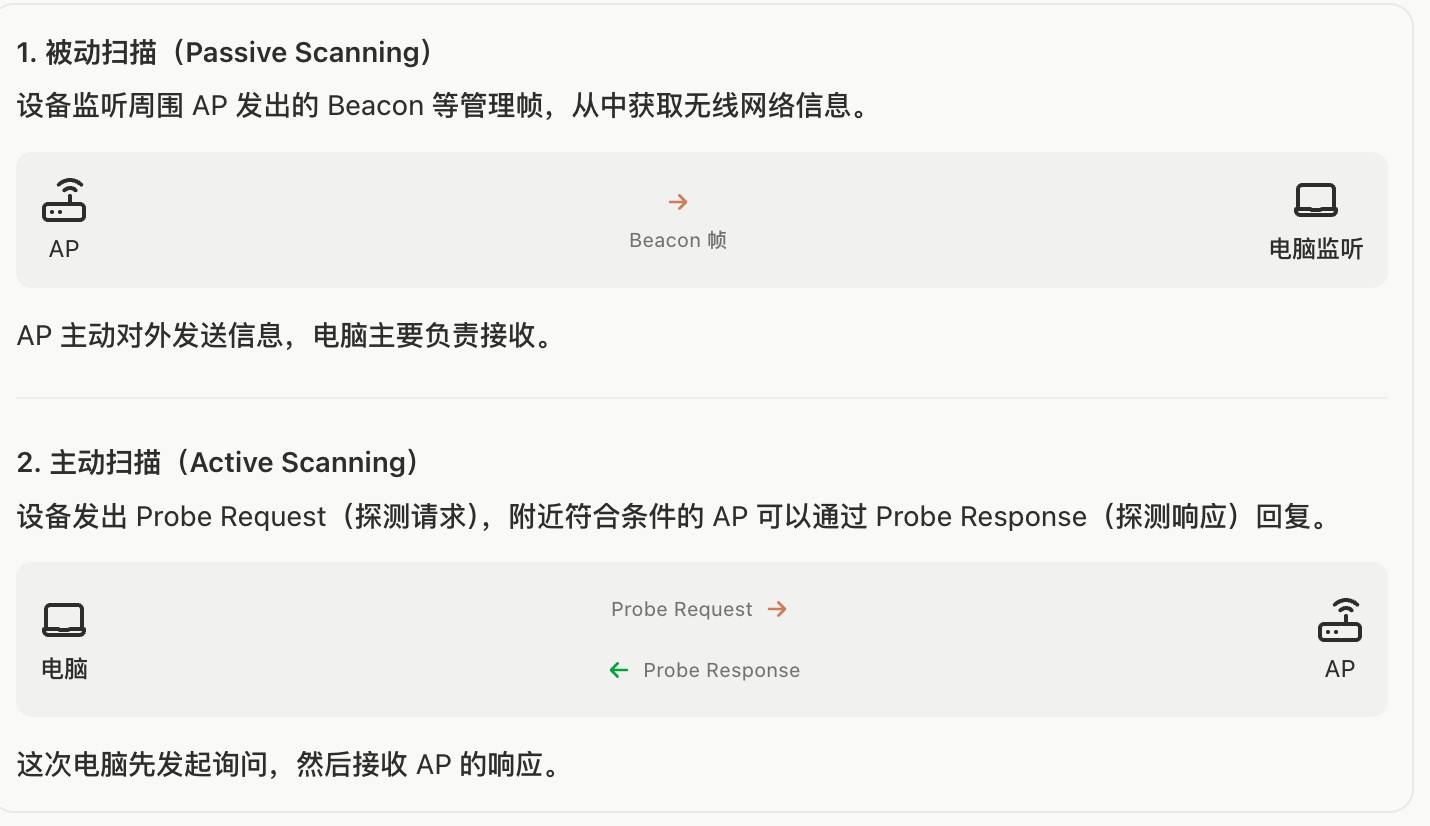
Passive scanning listens for AP Beacons. Active scanning sends a Probe Request and receives a Probe Response. Both discover networks; association and key establishment come afterward.
SSID, BSSID, and MAC addresses
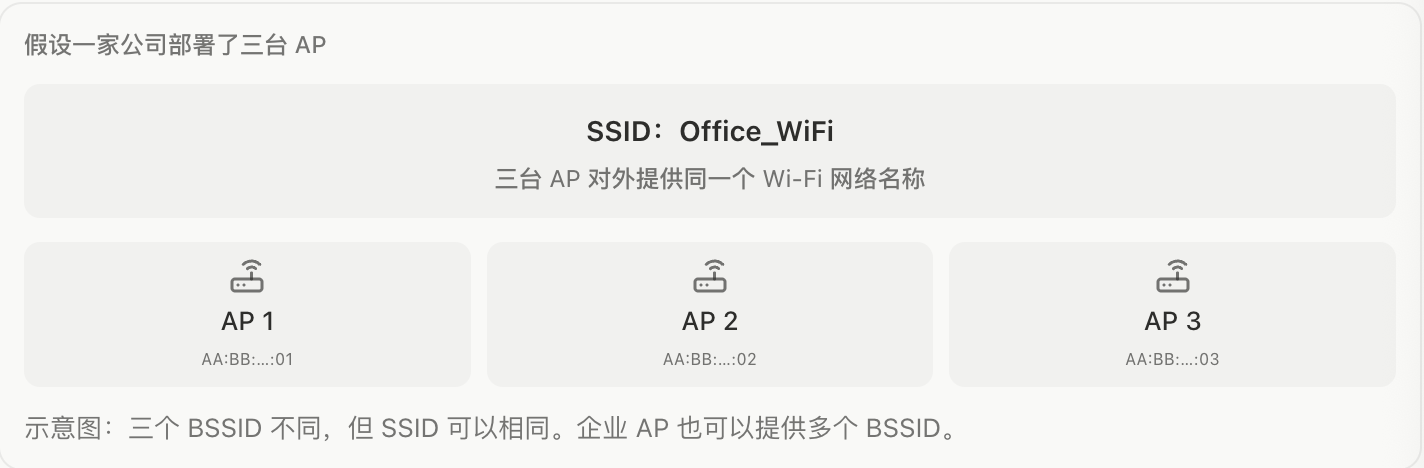
The SSID names a network, the BSSID identifies a particular basic service set, and a MAC address is an interface’s link-layer address. In common networks, the BSSID is the MAC address the AP uses for that wireless service. One physical AP can offer multiple BSSIDs. One SSID does not necessarily correspond to one AP; record scan results by BSSID.
A hidden SSID suppresses the name in ordinary Beacons, not the AP itself. Management frames and the BSSID remain visible, and the SSID can appear in Probe Responses and client Probe/Association Requests. A hidden SSID does not hide the AP or provide encryption.
Scanning in Kali
Check whether Supported interface modes in iw list contains monitor, then inspect the current state using iw dev. A driver capability declaration is not proof of working reception; validate with an actual capture:
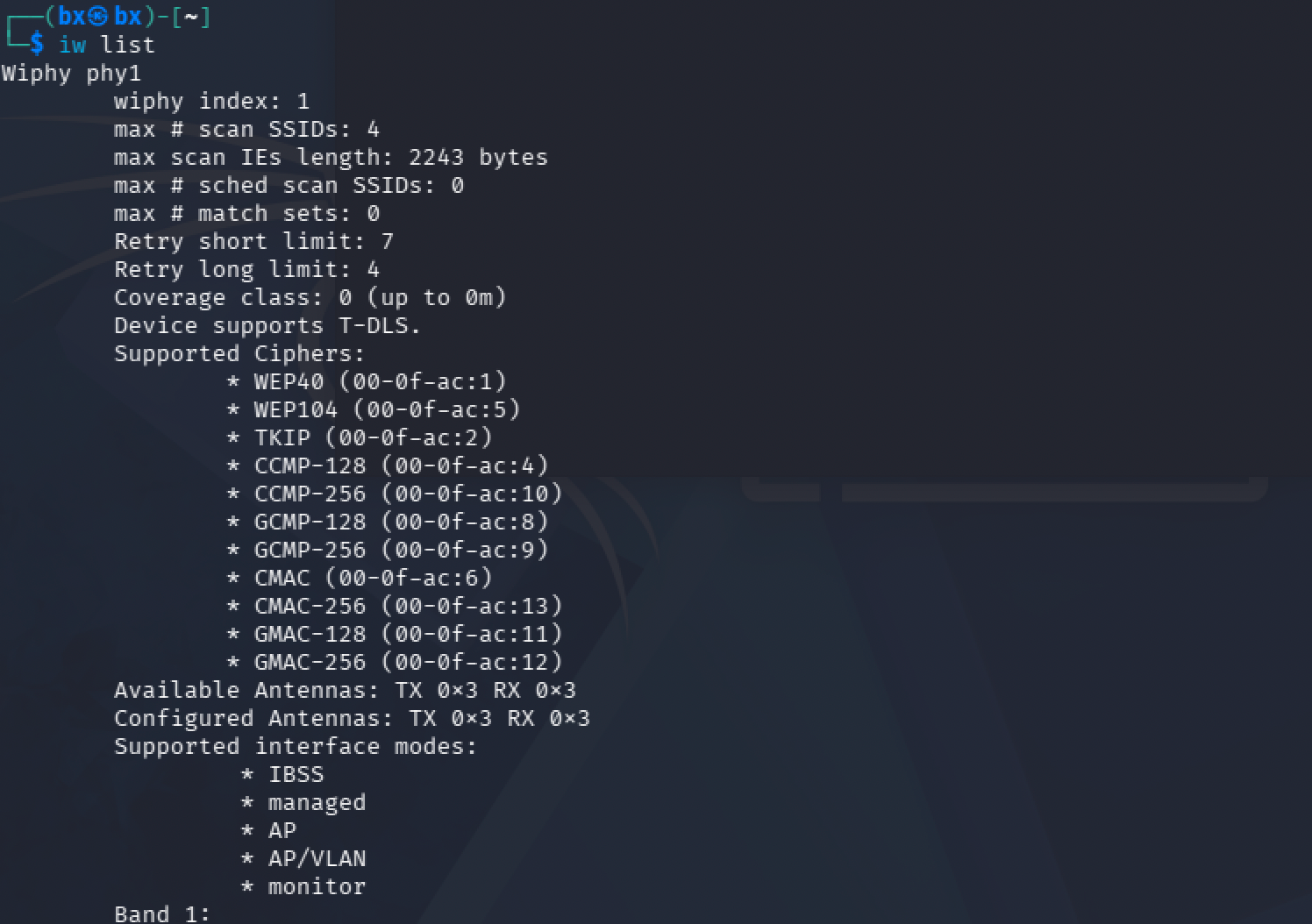
Manual mode changes do not rename an interface. wlan0mon is a common name created by tools such as airmon-ng. Inspect the actual interface list before copying commands. See Linux Wireless documentation for iw usage:
sudo ip link set wlan0 down
sudo iw dev wlan0 set type monitor
sudo ip link set wlan0 up
iw dev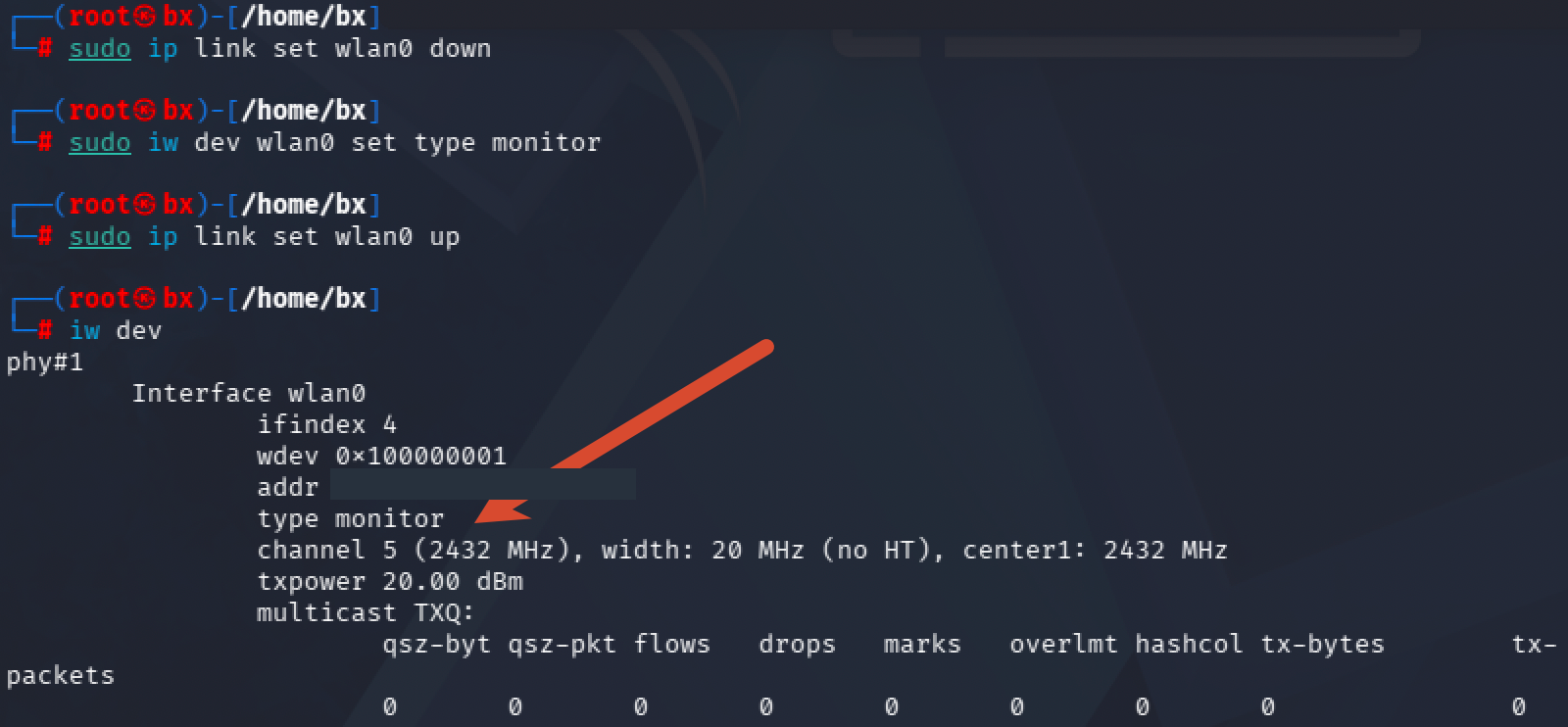
Once the output shows type monitor, scanning can begin. By default, airodump-ng hops only across 2.4 GHz channels; --band abg adds 5 GHz, subject to adapter and regulatory restrictions. See the official options. Hopping is not simultaneous reception, and this option does not cover 6 GHz:
sudo airodump-ng --band abg wlan0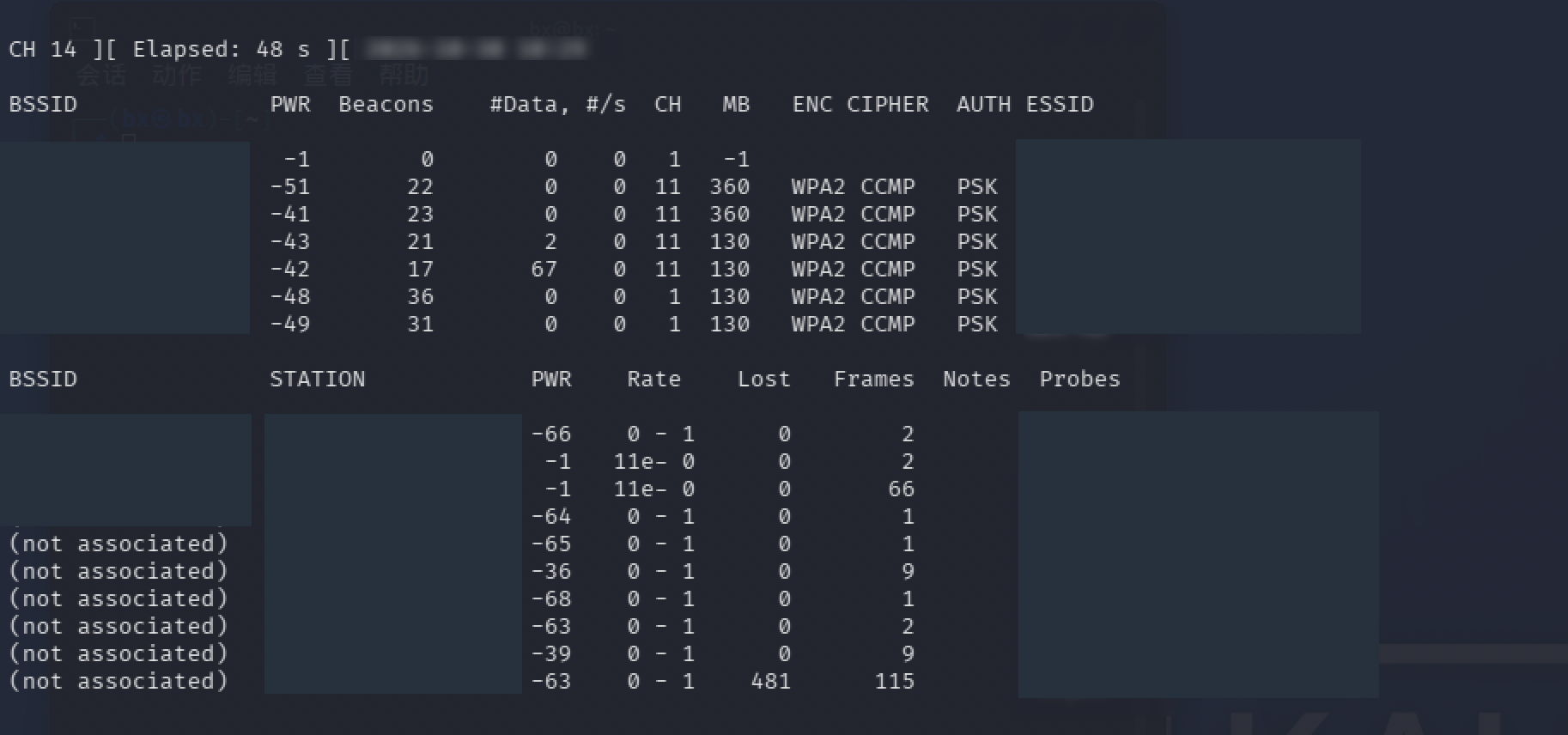
The upper section lists APs; the lower section lists observed clients. This 48-second sample shows channels 1 and 11, with no 5 GHz entries. Scan configuration, hopping windows, and nearby AP distribution all affect visibility. Without corresponding records, the screenshot neither establishes a particular cause nor confirms or rules out 5 GHz reception. Beacons and #Data are frame counts limited to this observation window.
- 01BSSID / ESSID
- Basic service set identifier / network nameDistinguish same-name networks by BSSID
- 02CH
- Observed channelRecheck before fixing the capture channel
- 03PWR
- Signal level reported by the adapterDriver-dependent; not always a standard dBm measurement
- 04ENC / CIPHER / AUTH
- Security mode / cipher suite / authenticationA scan summary is not a complete security assessment
What can an OUI tell you?
The prefix of an observed MAC address can provide a vendor clue:
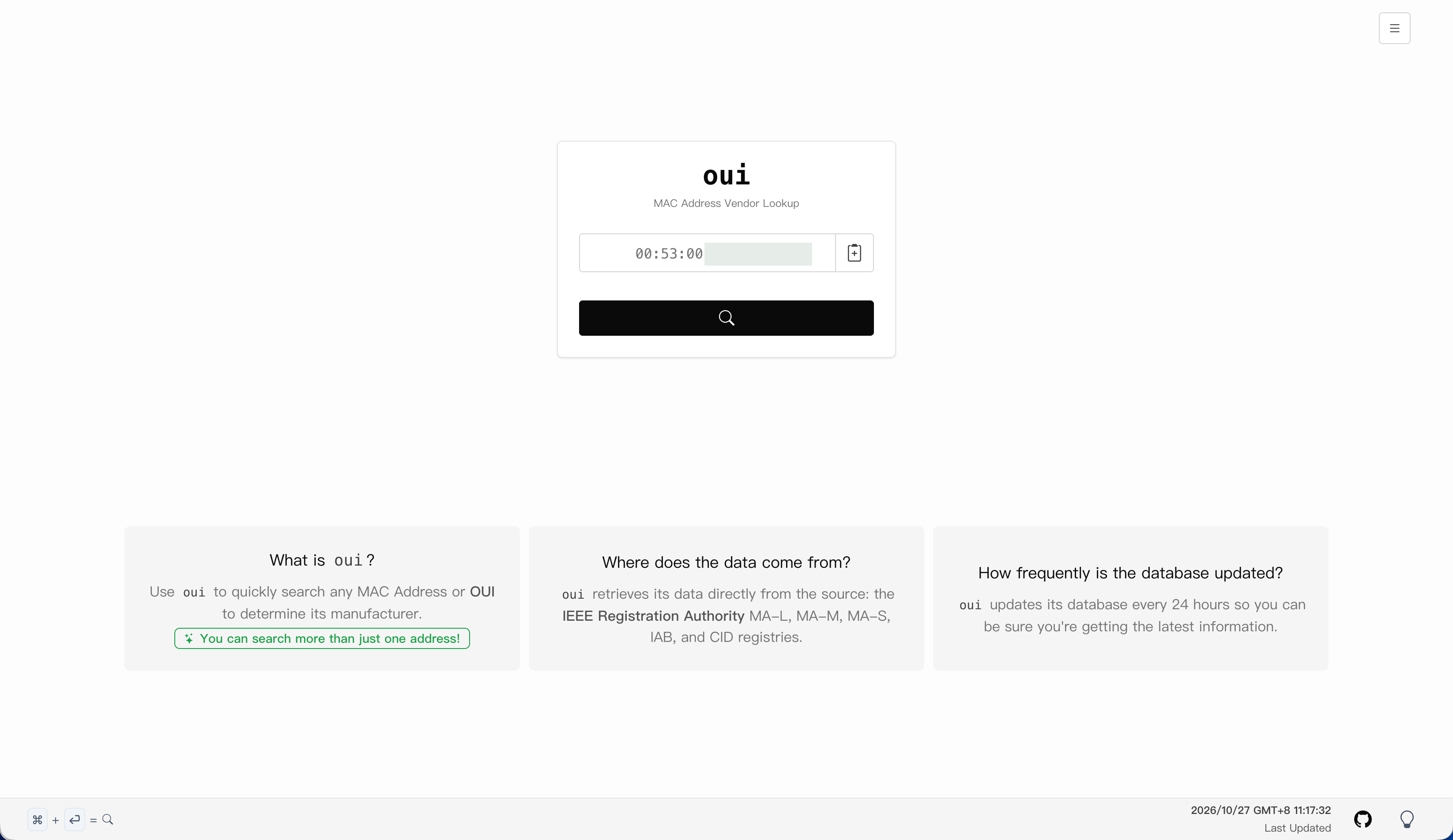
In traditional MA-L assignments, the first three bytes form the OUI associated with an IEEE-registered vendor. This is only a clue: locally administered addresses, virtual interfaces, and modified addresses can mislead the lookup.
Channels, bandwidth, and signal quality
Think of channels as roads: APs use different frequency ranges to reduce interference. CH usually shows only the primary channel; 48, 64, and 149 are 5 GHz channel numbers. An 80 MHz channel combines multiple 20 MHz subchannels and offers higher potential throughput, but interference, device capabilities, and client density still matter. DFS channels require radar avoidance; check iw reg get.
Signal levels cause a common misunderstanding: dBm values here are negative, and -46 dBm is stronger than -80 dBm. PWR depends on the driver. A 10 dB difference corresponds to roughly ten times the power, not a linear throughput increase. Field definitions are in the Airodump-ng documentation.
Identifying wireless protection
Identifying encryption is not recovering a password. This step determines the AP’s authentication and cipher choices and looks for obvious configuration issues. Start with ENC, CIPHER, and AUTH. The screenshot shows:
ENC     CIPHER    AUTH
WPA2    CCMP      PSK
This is WPA2-Personal: WPA2, AES-CCMP encryption, and PSK, the pre-shared-key password authentication commonly used at home. The scanner provides only a summary. Inspect the RSN information element in Beacon/Probe Response frames for details:
- RSN information element
- Advertises Robust Security Network capabilitiesCheck: Unicast/group cipher suites and the client's negotiated selection
- AKM (Authentication and Key Management)
- The authentication and key-management suiteCheck: PSK, SAE, 802.1X, OWE, and other paths
- PMF (Protected Management Frames)
- Protects selected robust management framesCheck: Capable and required indicate support and a requirement, not the same setting
In Wireshark, inspect wlan.rsn.akms.type, wlan.rsn.capabilities.mfpc, and wlan.rsn.capabilities.mfpr; see the 802.11 field reference. These advertise AP capabilities. The client’s actual negotiation must be checked separately.
- Traditional open network, often labeled OPN
Provides no WiFi link encryption
Check: Check for independent application protection such as TLS
- OWE
Encrypts the wireless link without a shared password
Check: Peer identity remains unauthenticated; distinguish it from traditional open access
- WEP
An obsolete protection mechanism
Check: Replace the configuration and check device compatibility
- WPA / TKIP
A legacy configuration that should be upgraded
Check: Check whether compatibility settings still admit legacy clients
- WPA2 / CCMP
Provides conventional link protection
Check: Check key management, WPS, PMF, firmware, and client policy
- WPA3-Personal / SAE
Uses SAE authentication
Check: Check transition mode, PMF requirements, and the actual client negotiation
OWE (Opportunistic Wireless Encryption) separates “no password required” from “no link encryption.” It encrypts the link without authenticating hotspot identity and does not replace HTTPS/TLS; see RFC 8110. A missing lock icon therefore does not, by itself, establish that the link is unencrypted. WPA3-Personal uses SAE; WPA3-only operation requires PMF, while transition mode requires inspection of compatibility paths. See Cisco’s WPA3 configuration guide. PMF protects selected management frames, not network-discovery information.
From advertised capabilities to actual negotiation
A Beacon’s suite list shows what the AP permits. The RSN parameters in an Association Request show what the client selects. The Association Response status indicates whether the AP accepts that association attempt. An AP in WPA2/WPA3 transition mode may advertise PSK and SAE together. Determining which path a particular client uses requires its authentication and association exchange; advertising SAE does not make every session WPA3.
Scope each check by BSSID, client address, and time window, and compare at least these three stages:
- Capability advertisement
RSN in Beacon / Probe Response
Which AKMs, unicast/group suites, and PMF policy does the AP advertise?
- Client selection and association
RSN in Association Request; wlan.fixed.status_code in the response
What did the client select, and did the AP return success?
- Key establishment
Session EAPOL-Key messages and subsequent protected data
Did key establishment follow association, and are data frames protected as negotiated?
WPA2 also carries relevant security parameters into the key exchange and checks consistency, rather than deriving the connection’s entire trust state from unauthenticated broadcasts. Compare the process with iwd’s WPA authentication implementation notes. A successful Association Response establishes only association success, not completion of the four-way handshake, address configuration, or application access.
Authentication methods and connection stages
The first distinction between Personal and Enterprise is how master key material is obtained. WPA2-Personal generally obtains its PMK from a pre-shared key; WPA3-Personal uses SAE to establish key material. Enterprise uses a particular EAP method for identity authentication and key establishment. These are not different names for the same password dialog.
For enterprise WLANs, inspect the EAP method and client trust settings. With server-certificate-based methods, trusting any certificate, or checking its chain without constraining the server name, weakens authentication of the service’s identity. Client certificates versus passwords also change the credentials a client must protect. WPS is a separate configuration entry point: inspect its enabled state, PIN/PBC settings, and access policy independently.
802.11 Authentication is not the same as user login. A typical initial WPA2-Personal connection performs Open System authentication and association before the EAPOL four-way handshake. WPA3-Personal performs SAE before association, followed by a four-way handshake to establish protection for the specific session. This discussion covers ordinary initial connections, not extensions such as fast roaming mixed into the same sequence.
What does the four-way handshake establish?
“WPA2 + CCMP + PSK” does not mean every frame is encrypted directly with the WiFi password. Long-term credentials supply master key material. The AP and client combine that material with fresh nonces and both addresses to derive session keys. The logical dependencies are:
长期凭据 / 认证过程 → PMK
PMK + AP/STA 地址 + ANonce + SNonce → PTK
PTK 中的 KCK / KEK / TK → 握手完整性 / 密钥数据保护 / 单播数据保护
AP 分发的 GTK → 下行组播与广播数据保护
These are dependency relationships, not byte-concatenation instructions or a universal cross-suite KDF formula. PMK means Pairwise Master Key; PTK means Pairwise Transient Key. ANonce and SNonce are generated by the AP and client respectively. Nonces may be exchanged over the air, but the PMK and complete PTK are not transmitted in plaintext alongside them. Different clients or connections should establish their own PTKs even when sharing a long-term credential.
See Cisco’s four-way-handshake explanation. KCK checks EAPOL-Key integrity, KEK protects key data, and TK protects data traffic; these roles are distinct. GTK is not another name for the unicast PTK. Multicast application traffic sent from a client toward the AP may still use a unicast frame on that wireless hop, so the upper-layer destination IP alone does not determine the link key.
The handshake establishes session protection and supplies material for checking key consistency. This is why WPA2-PSK still depends on shared-password strength: observing a handshake does not automatically reveal a password, but a weak password undermines long-term credential protection. WPA3-SAE has different offline-analysis conditions; “known password plus passive handshake recovers every session” should not be carried over unchanged.
Real captures may contain retries, missing frames, and group rekeys. Four EAPOL packets are not automatically a complete M1–M4 exchange. Pair messages using type, direction, nonces, Replay Counter, MIC flags, and association context. Matching counters in corresponding messages or retransmissions are not necessarily anomalous. For the distinction between key installation state and replay counters, see the formal analysis of WPA2, rather than inferring security from message counts alone.
Which frames does PMF protect?
PMF primarily protects robust management frames within an established security association, including Deauthentication, Disassociation, and selected Action frames. It does not encrypt every management frame or hide ordinary Beacons and Probes. Unicast and group-addressed management protection also differ: IGTK and BIP can protect the integrity, origin, and replay state of broadcast/multicast robust management frames. Integrity protection is not payload confidentiality. See Cisco’s 802.11w documentation.
MFPC=1 indicates support; MFPR=1 indicates a requirement. Client negotiation and security-association state must still be considered. Assess PMF separately from RF availability: high-power interference, insufficient coverage, and receiver faults do not disappear because management frames have integrity checks.
Over-the-air capture
In monitor mode, an adapter receives raw 802.11 frames on supported channels, including frames not addressed to it. Reception depends on channel, distance, and driver; reading the contents depends on encryption and available decryption material. Capturing packets is not the same as reading plaintext, and neither alone establishes a vulnerability.
Over-the-air capture is passive analysis. It requires neither joining the target WiFi nor its password. A single adapter listens to one primary channel at a time. Hopping helps discover networks; fix the channel when analyzing a particular AP to reduce missed frames.
Fix the channel and retain the output
The example below uses channel 11. Replace the BSSID with the lab AP’s address. These parameters are independent of the simulated AP’s channel 36 later in the article:
sudo airodump-ng \
  --channel 11 \
  --bssid AA:BB:CC:11:22:33 \
  --write wifi_lab \
  --output-format pcap,csv \
  wlan0
--write sets an output prefix; pcap,csv saves both capture and tabular data. After Ctrl+C, the usual outputs are wifi_lab-01.cap and wifi_lab-01.csv. The screenshot uses a different prefix and output setting, saving only pcap:
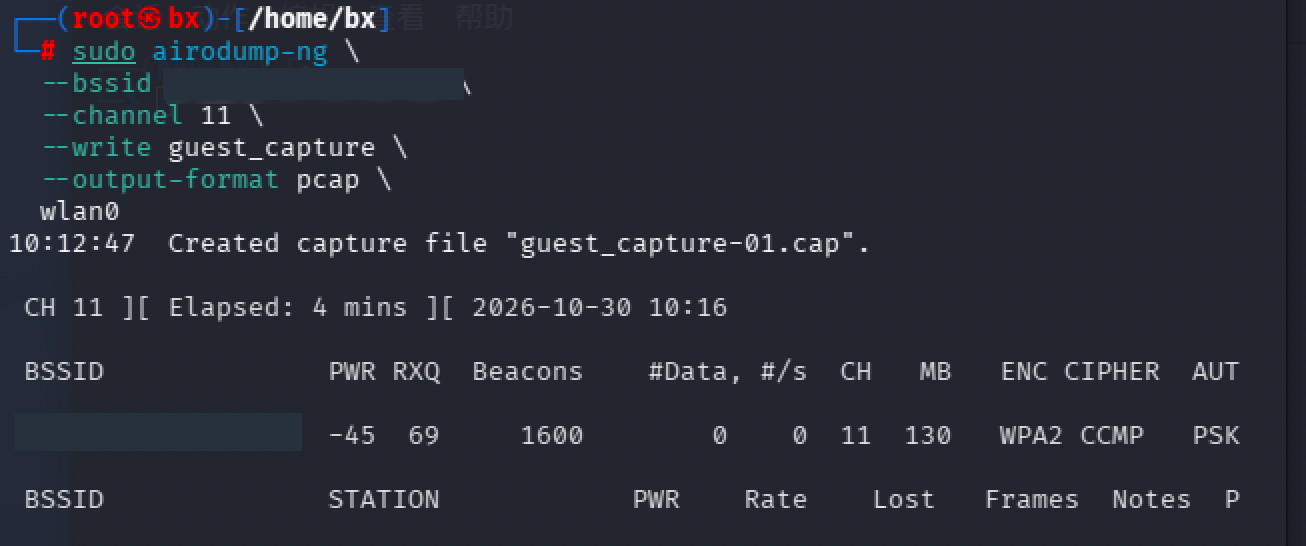
The screenshot shows roughly four minutes on channel 11, with Beacons=1600, #Data=0, RXQ=69, and a WPA2/CCMP/PSK summary. It directly supports the conclusion that target AP Beacons were received in this window and that the displayed data counter was zero.
#Data=0 does not establish that the CAP contains only management frames. Control frames are not included in that data count, and a counter is not a complete protocol inventory. Open the CAP to determine whether it contains control frames, particular client exchanges, or analyzable application traffic. RXQ is a tool-derived reception-quality metric, not a signal-strength percentage or a direct application packet-loss measurement. Only the screenshot is available here, not a CAP for frame-by-frame verification, so interface counters are not presented as file-level findings.
What is in a CAP file?
Monitor-mode capture records commonly prepend a Radiotap header with metadata such as receiving channel, signal power, and rate, followed by the 802.11 MAC frame. The capture path adds this header; the AP does not broadcast it. Available fields depend on the driver. See Wireshark’s Radiotap reference.
The MAC header contains several addresses whose meaning depends on To DS / From DS; BSSID is only one role. Whether FCS reaches the capture program depends on the adapter and driver. Investigate capture-path issues before attributing checksum errors to an attack.
Mapping the four address fields to traffic direction
802.11 describes both “who transmits to whom on this hop” and “where the carried traffic originates and ends.” RA/TA identify the receiver/transmitter of the current wireless hop; DA/SA identify the corresponding destination/source. DS means distribution system. This simplified mapping applies to common data frames; management, control, and Mesh extensions have their own formats:
| To DS / From DS | Address 1 | Address 2 | Address 3 | Address 4 |
|---|---|---|---|---|
| 0 / 0 | DA / RA | SA / TA | BSSID | None |
| 1 / 0, STA → AP | BSSID / RA | STA / SA / TA | DA | None |
| 0 / 1, AP → STA | STA / DA / RA | BSSID / TA | SA | None |
| 1 / 1, typical four-address forwarding | RA | TA | DA | SA |
When a phone accesses a wired-side service, the AP receives the uplink wireless frame, but the server is the application destination. An AP as TA does not establish that it generated the application content; an AP as RA does not make it the application’s endpoint. Compare Cisco’s 802.11 frame guide.
What to inspect in Wireshark
wireshark wifi_lab-01.capUseful display filters, with fields documented in Wireshark’s 802.11 reference:
| Purpose | Display filter |
|---|---|
| A specific basic service set | wlan.bssid == aa:bb:cc:11:22:33 |
| Management frames | wlan.fc.type == 0 |
| Control frames | wlan.fc.type == 1 |
| Beacon | wlan.fc.type_subtype == 0x08 |
| Probe Request / Response | wlan.fc.type_subtype == 0x04 / wlan.fc.type_subtype == 0x05 |
| Authentication | wlan.fc.type_subtype == 0x0b |
| Deauthentication / Disassociation | wlan.fc.type_subtype == 0x0c / wlan.fc.type_subtype == 0x0a |
| Data frames | wlan.fc.type == 2 |
| EAPOL | eapol |
| Data frames without the protection flag | wlan.fc.type == 2 && wlan.fc.protected == 0 |
Management frames support discovery, authentication, association, and connection maintenance. Control frames such as ACK, RTS, and CTS coordinate transmission. Data frames carry upper-layer communication. Some control frames have no BSSID field, so a BSSID-only filter misses them. Beacon, Probe, ACK, and EAPOL traffic is normal; its presence alone is not evidence of a vulnerability.
Protected = 1 only indicates a set flag; consider the cipher suite as well. Protected = 0 is not automatically a problem: EAPOL during key negotiation and Null Data may legitimately be unprotected. An empty filter result establishes only that this capture has no matching frames.
Conditions for judging application plaintext
Plaintext visibility has two layers: the link layer, where WPA2/WPA3 protects communication between a device and AP, and the application layer, such as HTTPS/TLS. A common WPA2-Personal analysis condition is a known password and SSID, or corresponding key material, plus the target session’s handshake. WPA3-SAE does not permit the same recovery from a password and passively captured handshake alone. See Wireshark’s 802.11 decryption guide. These are prerequisites for analysis; no decryption was performed in this experiment.
- No leakage establishedOnly Beacons, handshakes, or protected data are visible
Record protocol and protection state; application leakage is not established
- Application is unencryptedHTTP plaintext is visible after link decryption with keys
Application traffic lacks encryption; retain the decryption conditions
- Visible content establishes riskSensitive application content is readable without link keys
Leakage is established under these observation conditions; retain frame numbers and data types
- Application protection remainsThe payload remains TLS-encrypted after link decryption
Application-layer protection continues to protect the content
At minimum, retain the BSSID, channel, time window, decryption conditions, frame numbers, and visible data types. Distinguish observations made with session keys from those possible without them.
Turning screenshots into reproducible offline records
When analyzing a CAP, export fields for the relevant protocol scope, then inspect specific frames. Do not rely solely on a one-line Wireshark summary or terminal counter. The three commands below read only the local wifi_lab-01.cap: -r selects the file, -Y supplies a display filter, and -T fields exports fields. See the TShark manual. These examples are not claimed outputs from this experiment’s CAP.
First inspect the frames actually present and their address directions:
tshark -r wifi_lab-01.cap -Y 'wlan' -T fields \
  -E header=y -E separator=, -E quote=d \
  -e frame.number -e frame.time_relative \
  -e wlan.fc.type_subtype -e wlan.fc.tods -e wlan.fc.fromds \
  -e wlan.ta -e wlan.ra -e wlan.bssid \
  -e wlan.fc.protected -e wlan.fc.retry -e wlan.seq
Then compare advertised security capabilities and association status. A blank field may simply not apply to that frame; do not treat every blank value as a missing security mechanism:
tshark -r wifi_lab-01.cap \
  -Y 'wlan.fc.type_subtype == 0x08 || wlan.fc.type_subtype == 0x00 || wlan.fc.type_subtype == 0x01' \
  -T fields -E header=y -E separator=, -E quote=d \
  -e frame.number -e wlan.fc.type_subtype -e wlan.bssid \
  -e wlan.rsn.pcs.type -e wlan.rsn.akms.type \
  -e wlan.rsn.capabilities.mfpc -e wlan.rsn.capabilities.mfpr \
  -e wlan.fixed.status_code
Finally, determine whether EAPOL-Key messages can be paired. msgnr is the dissector’s classification, still requiring direction and session context. These commands use current wlan_rsna_eapol fields rather than some migrated eapol.keydes.* fields found in older guides:
tshark -r wifi_lab-01.cap -Y 'eapol.type == 3' -T fields \
  -E header=y -E separator=, -E quote=d \
  -e frame.number -e wlan.ta -e wlan.ra \
  -e wlan_rsna_eapol.keydes.msgnr -e eapol.keydes.replay_counter \
  -e wlan_rsna_eapol.keydes.key_info.key_ack \
  -e wlan_rsna_eapol.keydes.key_info.key_mic \
  -e wlan_rsna_eapol.keydes.key_info.install
See the Wireshark RSNA EAPOL-Key reference. If versions differ, inspect local support with tshark -G fields. Preserve the original CAP and SHA256, write exported tables to separate files, and cite frame numbers. Record tool version, filters, and whether decryption was enabled.
Simulated AP experiment
SSIDs are not unique: two APs can broadcast the same name, so a WiFi name alone cannot establish network authenticity. This section starts a test hotspot in an isolated environment and observes phone discovery and association. A rogue AP is an AP not approved by the network administrator. An Evil Twin goes further by impersonating an existing network’s identity.
The experiment uses the independent SSID Lab_WiFi_Test, without impersonating an existing network. It observes only hotspot broadcasting, phone discovery, and client association. Testing same-name impersonation detection requires a legitimate AP as a control. Discovering an AP does not establish attack success, and joining an open AP does not mean authentication was cracked.
Starting the lab hotspot
airbase-ng builds a simulated AP using a monitor interface. hostapd usually uses actual AP mode through nl80211. Choose according to driver support. Running AP and monitoring roles on the same radio can be unstable; use two adapters when practical. The screenshot uses:
sudo airbase-ng \
  -a 02:11:22:33:44:55 \
  --essid Lab_WiFi_Test \
  -c 36 \
  wlan0
-a selects the lab BSSID. Channel 36 requires compatible hardware, driver support, and local spectrum rules; see the official Airbase-ng documentation. This experiment starts only an open hotspot, without application-traffic forwarding.
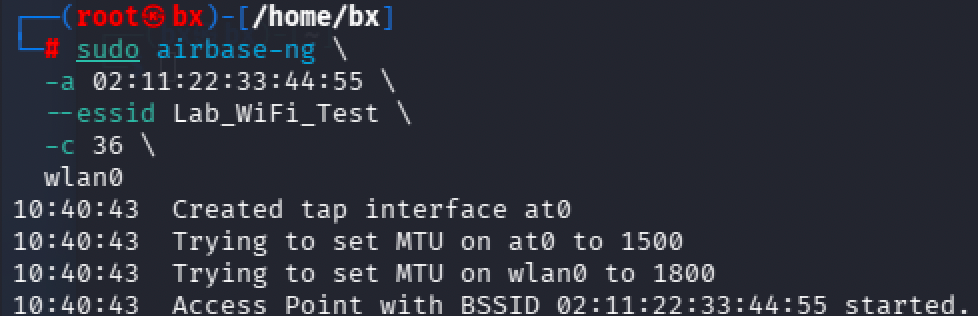
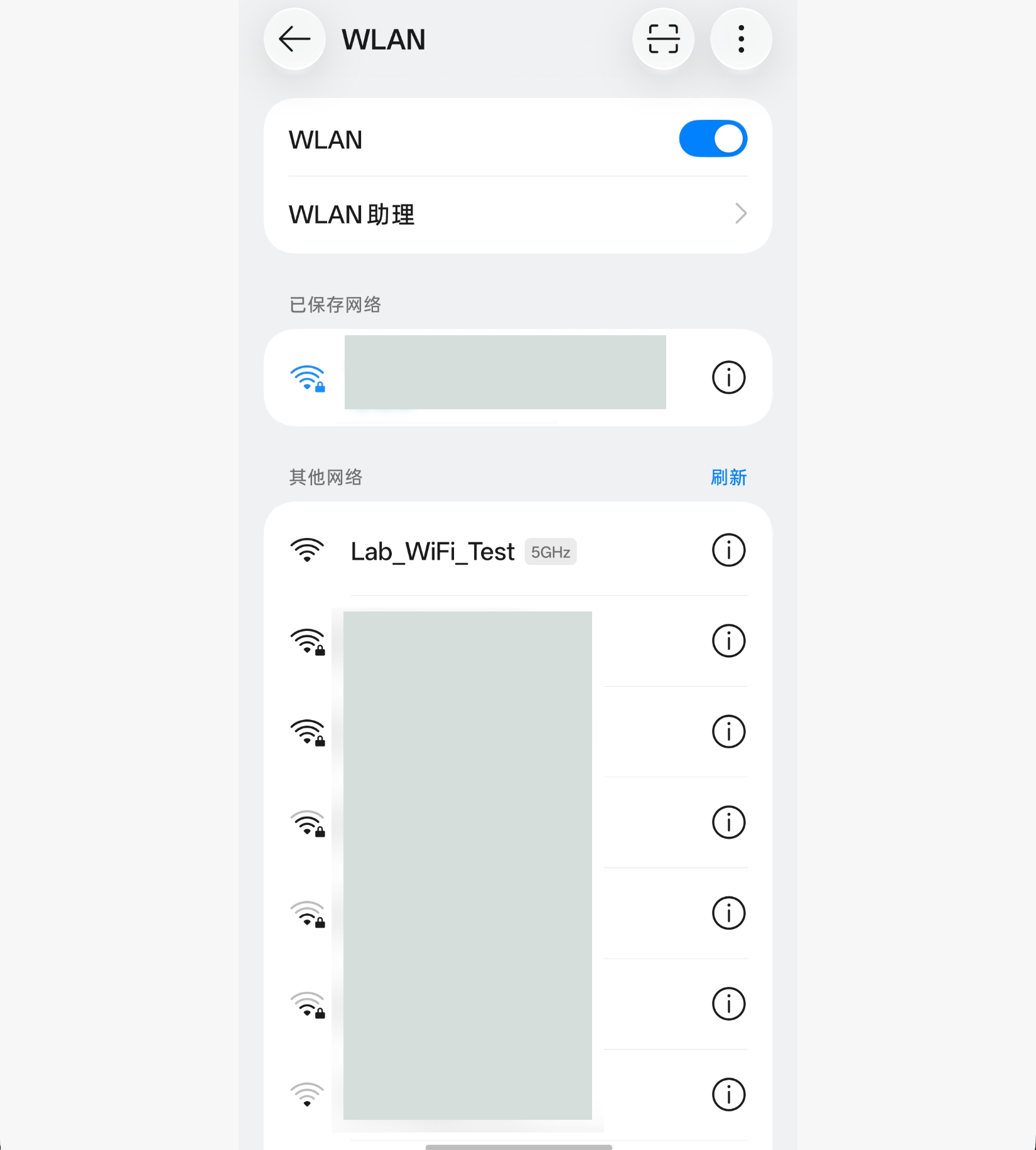
After Access Point ... started, the name appears in the phone’s WLAN list:
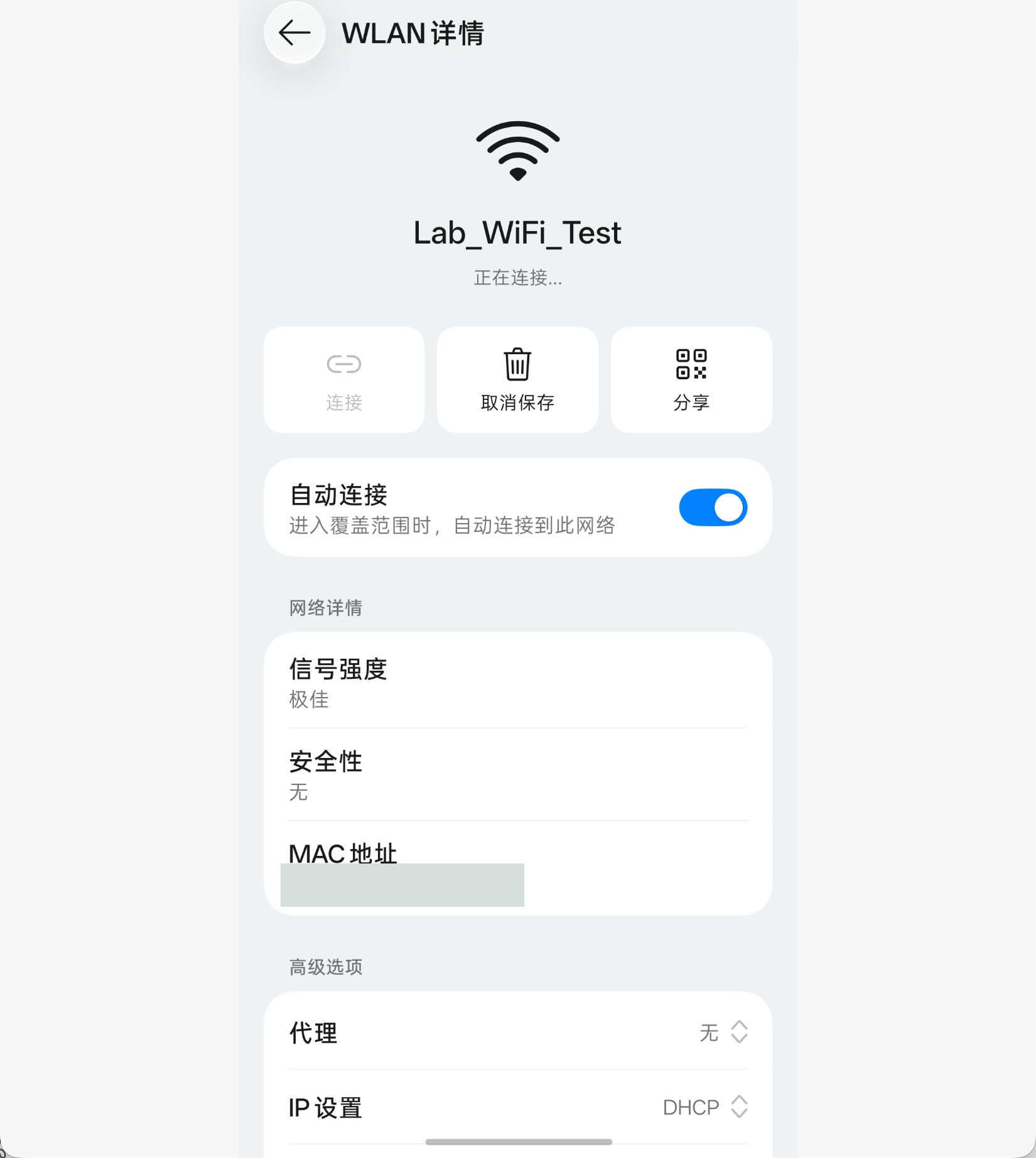
The network details show security as “None,” indicating an open network. Auto-connect is enabled and should be disabled after the experiment:
After manually selecting Connect, airbase-ng reports associated (unencrypted):
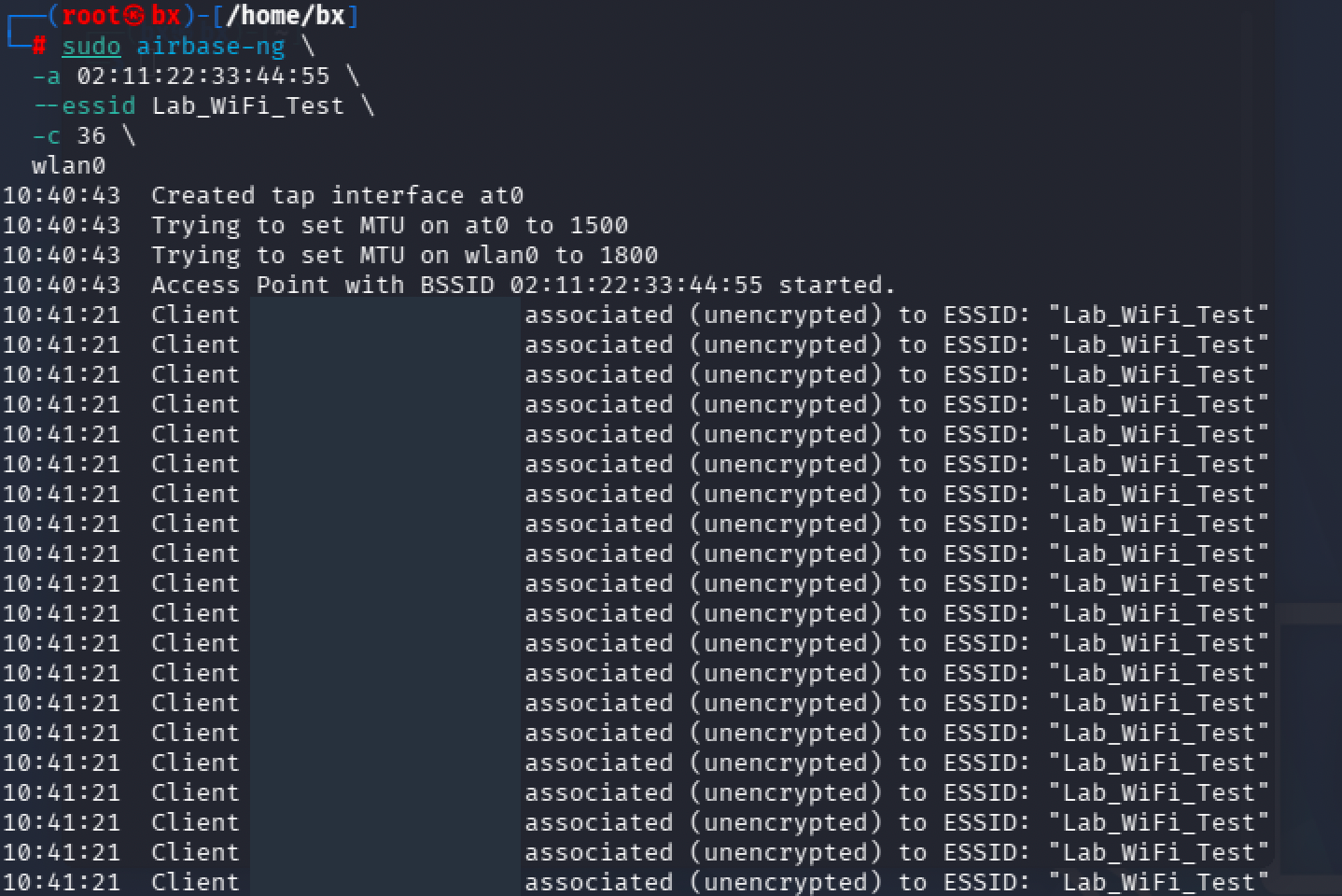
The logs show that the simulated AP processed the client’s association requests. The phone screenshot still shows a connection in progress, so it does not establish that an IP address was assigned. Repeated lines for the same client do not represent multiple clients or a count of continuously stable sessions.
Separate the possible explanations rather than immediately concluding that the phone was deceived or that the adapter is unsupported:
- H01The same request is retransmitted over the air
EvidenceClient address, Sequence Number, Retry flag, and timing
Distinguish: A matching sequence number together with the retry flag supports retransmission
- H02The client starts association again
EvidenceComplete authentication/association exchanges, distinct sequence numbers, and surrounding disconnects
Distinguish: Distinguish a restarted connection process from a simple retransmission
- H03The AP responds but the client does not reach the expected state
EvidenceAssociation Response status, bidirectional frames, and client state
Distinguish: A single AP log line cannot prove that both ends reached matching states
- H04Address configuration is pending after association
EvidenceSuccessful wireless association and DHCP or other IP-configuration records
Distinguish: Separate link failure from stalled IP configuration
Interpret sequence numbers with the frame subtype, sender, time window, and context such as QoS TID. Numbers wrap; do not deduplicate an entire file using a sequence number alone. The screenshots do not include these supporting exchanges, so the branches remain investigation paths rather than established causes.
| Observation layer | State transition | Acceptance evidence | Conclusion boundary |
|---|---|---|---|
| Discovery | Scan → visible | Beacon / Probe Response | Visible network; no established connection |
| Link setup | Authenticate → associate | Response status / association logs | Association does not imply keys or IP readiness |
| Service access | Link → IP → service | Key records, if applicable / IP / service results | Assess the protection actually enabled |
| Platform detection | Discover → classify → alert | BSSID / event time / alert log | An alert does not prove blocking |
| Response and recovery | Respond → retest → recover | Action records / client retest results | A result applies to its tested conditions |
Platform alerts need separate evidence
No platform screenshots or event logs are provided. The following is an independent validation design. Create separate controls for WIDS/WIPS (wireless intrusion detection/prevention systems) and the WLC (wireless LAN controller). Register the legitimate AP’s SSID, BSSID, security mode, and location; start the test AP within the agreed area; then compare the platform’s BSSID, first-seen time, alert time, and risk classification.
At minimum, include a legitimate-AP baseline, a fixed-configuration test AP, and recovery after the test stops. Keep location, transmission settings, and observation duration as consistent as possible. Verify sensor coverage of the relevant band before judging rule activation. No reception, missed sampling, and reception without a matching rule are different explanations for a missing alert.
Record discovery, alert, response, and client recovery separately, with times and outcomes. Calculate detection latency as “first-seen time minus test-AP start time,” documenting clock synchronization and the observation window. Manual screenshots limit timing precision to the recorded observation points. Evaluate blocking by retesting client state before and after the response action, not by inferring it from an alert entry.
AP DDoS and availability analysis
A WiFi outage does not automatically establish DDoS against an AP. DoS concerns unavailable service; DDoS additionally requires distributed sources. A single device sending many frames may still constitute only DoS. Numerous source MAC addresses do not establish multiple physical sources because addresses can be spoofed. Identify the affected resource—wireless channel, AP, controller, authentication backend, or uplink—instead of merely reporting that “WiFi was knocked offline.”
Locate the resource bottleneck first
- 01RF interference and airtime contention
Interference or heavy occupancy reduces useful communication time; ordinary congestion, hidden nodes, and coverage faults can look similar.
Observe: Channel utilization, retries, client signal, and spectrum data; an ordinary monitor adapter cannot fully characterize non-WiFi interference.
- 02802.11 management and association state
Forged disconnect messages may disrupt connections lacking the relevant protection; abnormal authentication or association requests can consume processing resources.
Observe: Frame subtypes and timing, retry flags, status/reason codes, PMF negotiation, and actual client disconnect records.
- 03AP / controller / authentication backend
Session tables, CPU, or RADIUS capacity can become bottlenecks, sometimes first affecting newly connecting clients.
Observe: CPU, memory, queues, session counts, authentication timeouts, and backend logs; observe established and new clients separately.
- 04IP services and uplink
DHCP, DNS, gateway, or upstream faults can leave a device associated but unable to reach applications.
Observe: Leases, gateway reachability, DNS, and service probes; record these independently of wireless association.
These are mechanism categories, not attribution of an attack to these screenshots. Compare authentication floods, management-frame anomalies, and backend resource exhaustion with Cisco wIPS DoS classifications. Older product alert names and thresholds are not universal AP standards.
Deauthentication is neither DDoS nor password recovery. It terminates authentication; Disassociation terminates association. Normal roaming, deliberate disconnects, and fault recovery also produce these frames. After a security association is established, PMF protects the relevant robust management frames and reduces acceptance of forged disconnect messages. It does not guarantee unlimited airtime, computing resources, or upstream service capacity.
Demonstrate impact on a timeline, not just with frame counts
Filter disconnect frames from an existing capture offline, retaining frame number, time, transmitter/receiver, reason code, and retry context:
tshark -r wifi_lab-01.cap \
  -Y 'wlan.bssid == 02:11:22:33:44:55 && (wlan.fc.type_subtype == 0x0c || wlan.fc.type_subtype == 0x0a)' \
  -T fields -E header=y -E separator=, -E quote=d \
  -e frame.number -e frame.time_relative -e wlan.ta -e wlan.ra \
  -e wlan.fc.type_subtype -e wlan.fixed.reason_code \
  -e wlan.fc.protected -e wlan.fc.retry -e wlan.seq
Replace the example BSSID with the observed AP’s address. See the Wireshark 802.11 reference. Protected frames that have not been decrypted may not expose a reason code. Empty results can also reflect a wrong channel or missed frames. Protected=1 indicates a flag, not that the analyzer verified the MIC or that the receiving endpoint accepted the frame.
Use the same channel, observation location, and time window to record baseline, abnormal, and recovery phases. Frames per second means frames received by the sensor, not total transmissions. Distinguish retries using sender, subtype, sequence number, and Retry flag; do not equate MAC count with physical-transmitter count.
Availability metrics should cover all three dimensions:
- Connection: successful associations divided by valid connection attempts, plus authentication and key-establishment completion. Association logs alone can miss later failures.
- Application: service-probe success rate, latency percentiles, and packet loss. Record interval, sample size, and target service; do not confuse DNS failure with wireless disconnection.
- Recovery: elapsed time from the end of the abnormal condition to the start of a predefined continuously normal window. “Normal” can require both connection and service probes to recover, but specify the window length and allowed failures in advance.
Choose mitigation according to the bottleneck. For robust-management issues, inspect actual PMF negotiation. For access-processing anomalies, examine vendor-supported rate limits, resource protection, and firmware fixes. Check capacity and isolation separately for DHCP, DNS, and authentication services. Investigate RF issues with spectrum analysis and channel planning. Derive thresholds from the baseline, device capacity, and application tolerance rather than inventing a universal frame-rate attack threshold. No disconnect attack or capacity-test records are available here; this section describes analysis and acceptance criteria.
WiFi password guessing and password-strength auditing
“WiFi password brute force” first requires identifying the credential being tested. WPA2-PSK commonly permits offline candidate verification: with suitable handshake material, compute each candidate and compare it with the record, without logging in to the AP for every attempt. This targets weak passwords rather than directly enumerating AES-CCMP session keys.
Why WPA2-PSK permits offline verification
For common 8–63-character passphrases, WPA2-Personal derives a 256-bit PSK from the passphrase and SSID and uses it as the PMK. The parameters appear in the wpa_supplicant wpa_passphrase implementation:
PMK = PBKDF2-HMAC-SHA1(passphrase, SSID, 4096 iterations, 32 bytes)A 64-hex-digit value can directly represent a 256-bit PSK; do not apply the passphrase derivation to it again. The SSID is a salt, not a secret: the same passphrase produces different results under different SSIDs. An SSID and Beacon alone are insufficient to verify a candidate; material from the target connection is still required.
- Inputs and session pairing
Identify the SSID, AP/STA addresses, nonces, MIC-bearing EAPOL-Key message, and matching session context.
Do not combine different clients, connections, or retries into one handshake; M1 alone is generally insufficient for MIC verification.
- Candidate → PMK → PTK
Derive a PMK for each candidate, then a PTK using both addresses and current nonces, and extract the relevant integrity-check key.
Match the AKM, key descriptor, and negotiated algorithms; no single MIC algorithm applies to every WPA variant.
- Recompute and compare the MIC
Process the MIC field as required by the protocol, recompute message integrity, and compare it with the capture; a match links the candidate to that material.
The MIC is not the password. Usable material need not contain exactly one of each of the four messages; supported valid combinations depend on the tool.
Some WPA2 scenarios also support PMKID-based verification. AP availability, AKM, and tool support need separate checking; it is not universally obtainable from every AP. This section uses EAPOL-Key material. See Aircrack-ng documentation for accepted message combinations.
A reproducible offline audit
Set a known test password on an owned lab AP and capture the test phone’s normal connection on a fixed channel. Retain the CAP and hash. Use a small, predetermined candidate set for positive and negative controls: include the known password in the positive set and omit it from the negative set. Keep the capture and tool parameters identical between runs. This distinguishes invalid material, mismatched settings, and a candidate that is simply absent.
The example below reads existing lab files without wireless transmission. Its candidates are demonstration values, not the actual password of the observed hotspot:
printf '%s\n' 'LabOnly-Example-01' 'LabOnly-Example-02' > lab-candidates.txt
aircrack-ng -a 2 -b 02:11:22:33:44:55 \
  -w lab-candidates.txt wifi_lab-01.cap
-a 2 selects WPA/WPA2-PSK, -b selects the BSSID, and -w selects the candidate file. The CAP must come from the corresponding encrypted lab network. The open simulated AP above has no WPA2-PSK handshake and cannot supply this experiment’s input. Only screenshots are available here, not a verifiable handshake CAP, so no password-recovery result or runtime is claimed.
Interpret outcomes in three categories. A match verifies that candidate against the supplied material. Exhaustion without a match excludes only the tested candidates. No usable handshake or a tool error establishes nothing about password strength. Record tool version, CAP hash, candidate-set hash and size, measured verification rate, runtime, and tool status. A report need not disclose the real password.
Strength, authentication methods, and protection boundaries
If a password is genuinely generated independently and uniformly from an alphabet of size A, with length L, its search space is N = A^L. At a fixed verification rate r, average exhaustive-search time is approximately N / (2r). This is a model, not an estimate for structured human-chosen passwords. Dictionaries, reuse, and patterns change candidate ordering. A GPU model or an online screenshot’s speed is not a local benchmark.
- WPA2-PSK: use an independent, long random password, avoid reuse, and rotate exposed credentials. Offline guesses do not contact the AP, so login-failure rate limits do not stop computation against an existing capture. PMF does not strengthen a weak PSK.
- WPA3-SAE: do not reuse the WPA2 passive-handshake candidate-verification model. A known password and passive four-way handshake are insufficient to recover the session PMK. In transition mode, check whether the client actually uses SAE or the WPA2 compatibility path. These are protocol conditions, not a claim that implementations have no vulnerabilities.
- WPS: PIN/PBC is a separate provisioning and access path, not another name for a WPA2 password dictionary. Disable WPS when unnecessary, and inspect supported methods, lockout policy, and firmware separately.
- Enterprise: the EAP method, server-certificate verification, and client configuration define the trust boundary. A Personal-mode PSK dictionary command does not apply to every enterprise method. Use certificate-based authentication where supported, while still managing certificates and client configuration.
For WPA3 session-decryption conditions, see Wireshark’s WPA3 explanation. Password auditing and application decryption are different conclusions. Even a verified WPA2 password still requires matching session material, and TLS can continue protecting application content after wireless-link decryption.
Review priorities and lab cleanup
Review device/driver identity, fixed-channel capture, RSN and actual negotiation, application-plaintext prerequisites, client/platform outcomes, availability timelines, and password-audit boundaries. Screenshots illustrate behavior; CAPs and logs support reproducibility.
| Item | Recorded observation | Material needed for verification |
|---|---|---|
| AP discovery | Screenshots of AP and client lists | CSV and environmental records from the same window |
| Protection identification | WPA2 / CCMP / PSK in the screenshot | RSN, PMF, WPS, and actual configuration |
| Over-the-air capture | Screenshot showing capture-file creation | Original CAP, hash, and frame-level analysis |
| Simulated AP | Startup, phone discovery, and association screenshots | Address assignment, controls, and recovery |
| Platform detection / blocking | An independent validation item | Alert events, response actions, and client retests |
| AP DDoS / availability | Analysis method added here; no measured results | CAP, resource metrics, service probes, and recovery timeline |
| Password-strength audit | Offline method added here; no actual handshake CAP | Known-password controls, candidate scope, tool state, and hashes |
Troubleshooting order
| Symptom | Check first | Evidence |
|---|---|---|
lsusb lists the device but iw dev shows no interface | USB passthrough, driver binding, and firmware | lsusb -t and kernel logs |
| Monitor-mode change fails or quickly returns to managed | Radio-block state, mode support, and connection-management processes | rfkill list, iw list, and airmon-ng check |
| 2.4 GHz is visible but 5 GHz is not | Scan band, hardware frequency list, and target channel | --band abg, iw list, and AP configuration |
| The AP is visible but target data is scarce | Channel hopping, actual client traffic, signal, and reception | A fixed channel and matching observation windows |
| Captures stop or the adapter repeatedly reconnects | USB power, controller, cable, and driver errors | Reset/firmware records in journalctl -k -b |
airmon-ng check lists processes that may interfere with monitoring; see the official documentation. Identify the interface a process manages before stopping it. Restore the affected network-management services afterward using the recorded starting state.
Restoring the interface and connection
Stop airbase-ng and the capture program, then make the test phone forget the network and disable auto-connect. If the adapter mode was changed manually, restore that same interface:
sudo ip link set wlan0 down
sudo iw dev wlan0 set type managed
sudo ip link set wlan0 up
iw dev
The output should show type managed. Restore network-management services and verify an actual working connection; command success alone is insufficient. Correlate client logs, CAPs, and platform events by BSSID, channel, and timeline when retesting.
Supplementary illustrations
Show wireless concepts and signal-strength illustrations
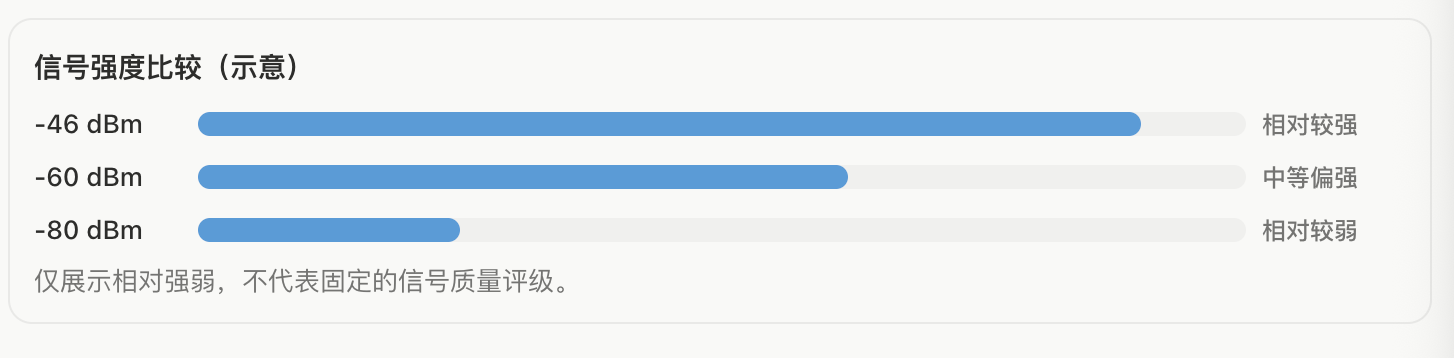
The signal illustration shows only the direction of comparison, not measurements from this experiment or linear power ratios.