
Claude Code Usage Notes & Reflections
I’ve been using these tools recently, so I’m jotting down some notes for my own reference.
These CLI-style tools all work in the same way; the same applies to Gemini CLI, Qwen CLI, Cursor CLI, and others.
Basic Usage
Launch and Modes
- Interactive mode (REPL):
claude- Non-interactive mode:
claude -p "你的问题"- Help:
claude -h
Common Use Cases
- Code questions and answers:
How does foo.py work? - Modify files:
Update bar.ts to ... - Fix errors:
cargo buildPaste the error into Claude - Run commands: Enter
/helpto see what’s supported - Execute Bash:
!ls,!git status
Common Commands
/add-dirAdd a new directory/agentsManage subagents (role configuration)/bashesManage background Bash shells/clearClear conversation history/compactClear history but keep the summary/contextView context usage/costView the cost of the current session/doctorCheck Claude Code installation/configuration/exitExit the REPL/exportExport the conversation/helpView help/hooksManage tool hooks/ideIDE integration status/initInitialize a CLAUDE.md document/login//logoutLog in/log out/mcpManage MCP services/memoryEdit Claude memory files/modelSet the AI model/output-styleSet the output style/pr-commentsGet PR comments/reviewReview a Pull Request/security-reviewReview the security of the current branch/statusView status (version/account/tools)/upgradeUpgrade to Max/vimToggle Vim mode
Using Claude Code
Command Integration
You can run commands such as git and pytest directly in the Claude interface, and Claude will explain the results.
- Enter this in Claude’s interactive window:
!git statusClaude runs this command in the background, displays the result, and automatically explains which files changed and the current branch status.
- For example:
!pytestIt runs the tests and outputs details on passes and failures. Claude tells you which tests failed, why they failed, and possible fixes.
CLAUDE.md
In Claude Code, CLAUDE.md is a project documentation file, equivalent to “Claude’s user guide + project context index.”
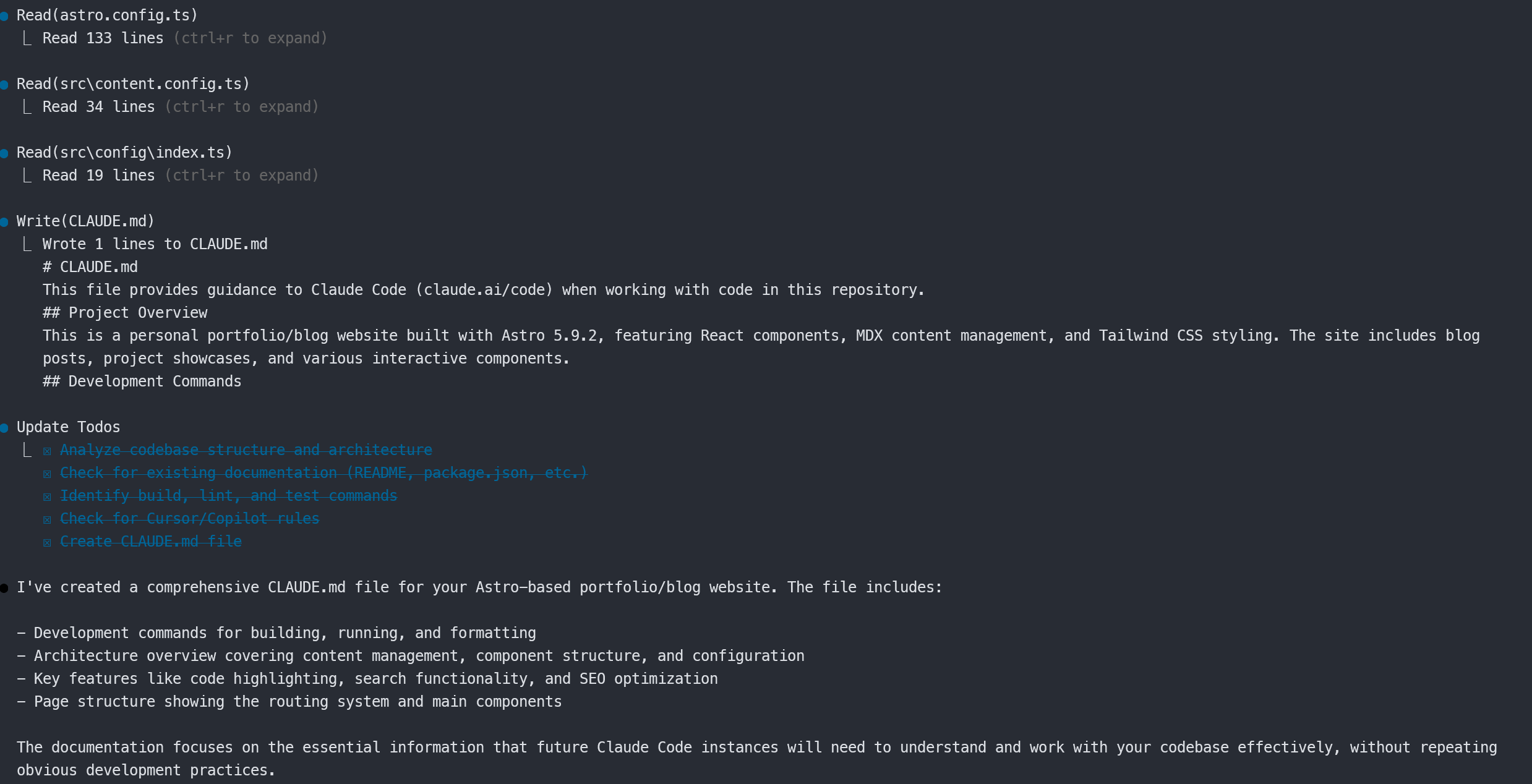
Screenshots
The specific results:
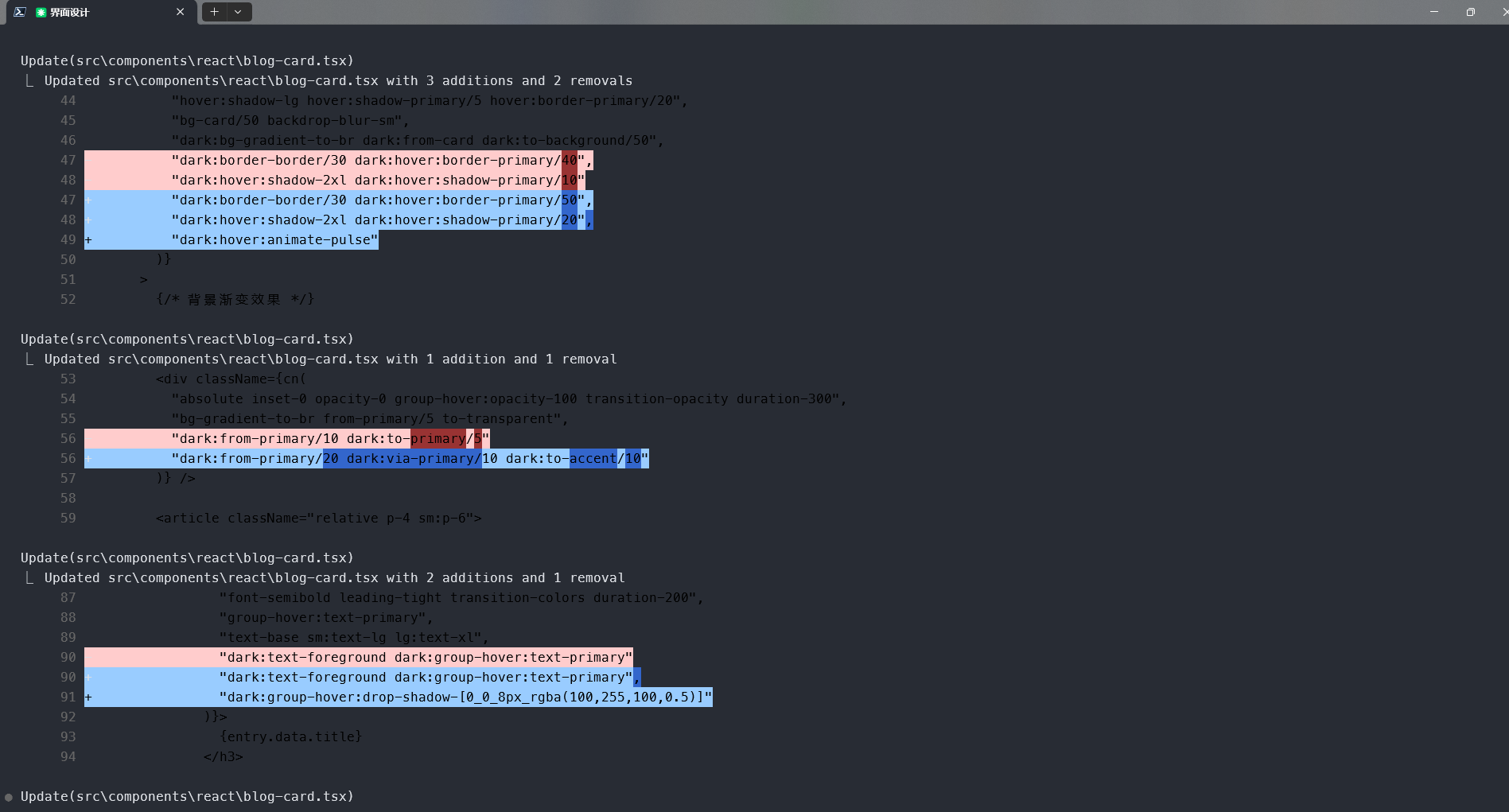
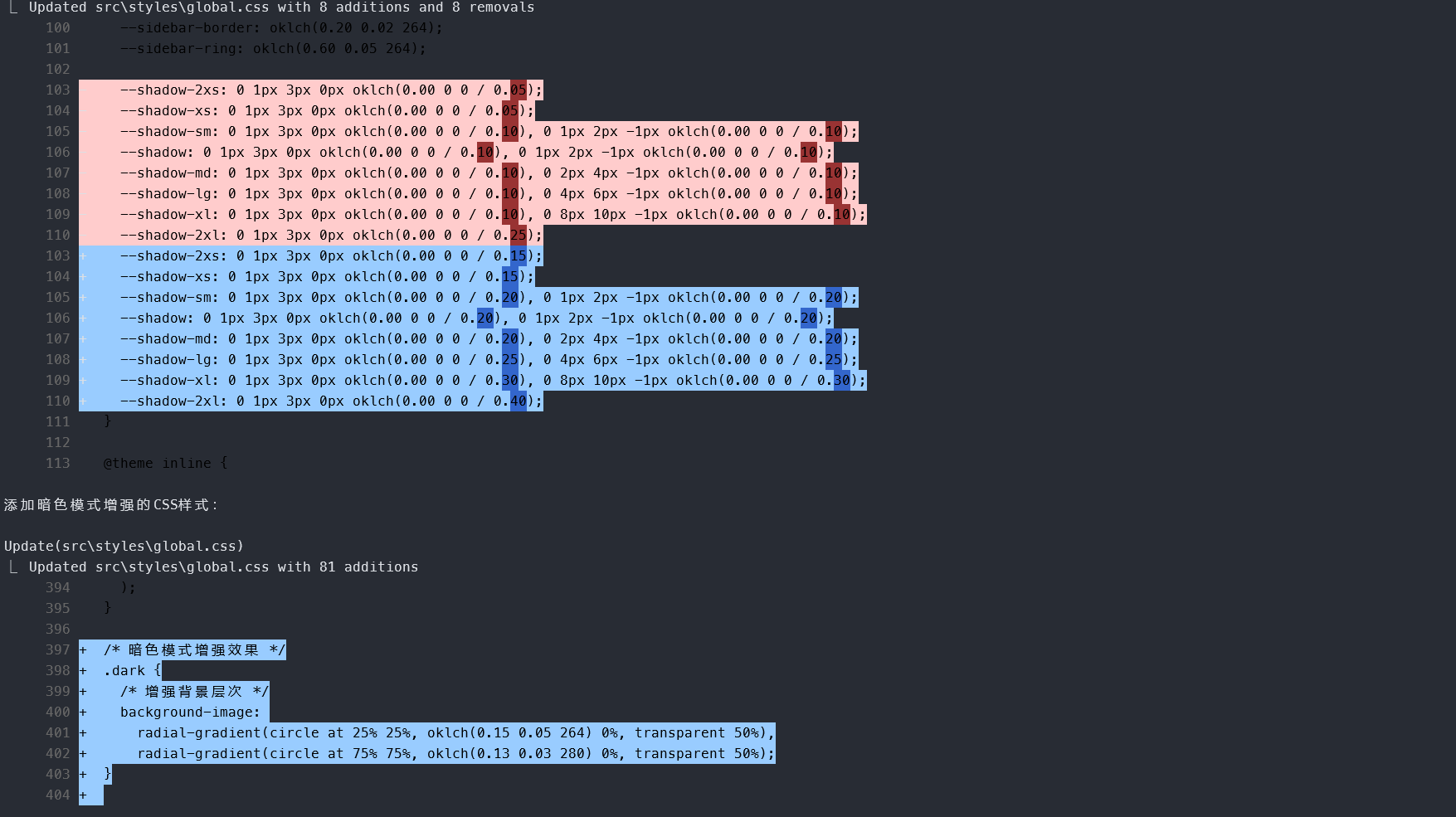
Todos
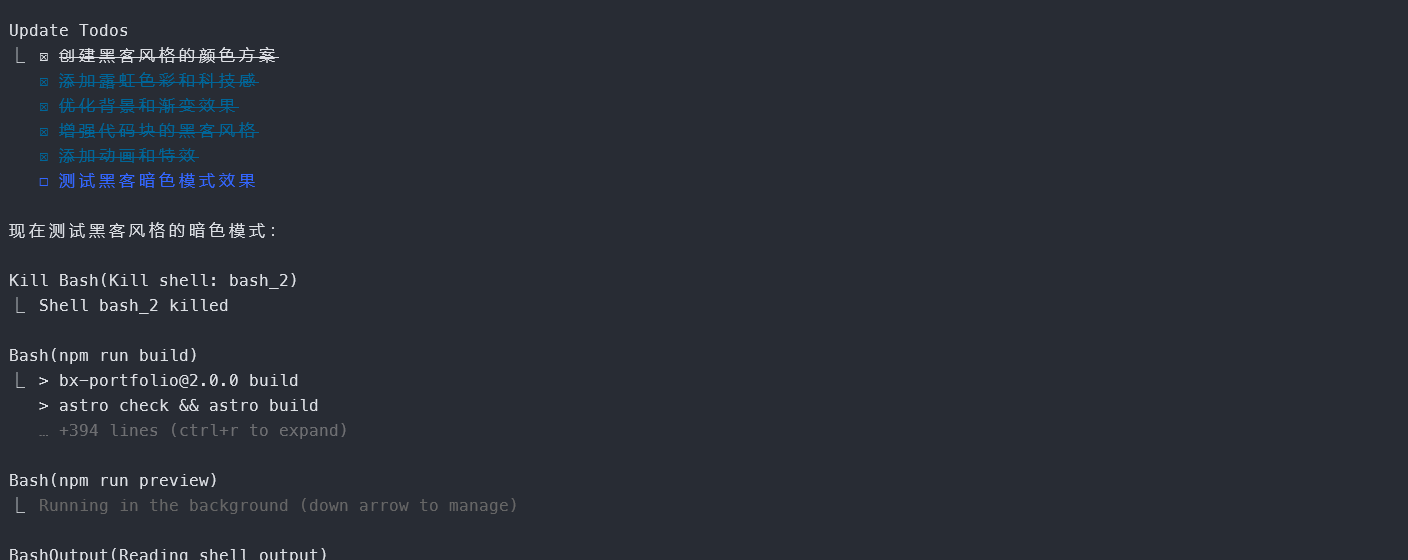
Usage tips
- Ask about code logic: Ask directly how a particular file/function works.
- Analyze errors: Paste in build or runtime errors, and Claude will suggest a fix.
- Modify files: Describe what needs to change in natural language. Claude generates a diff and applies it after confirmation.
- Command integration: You can run commands such as
gitandpytestdirectly in the Claude interface, and Claude will explain them. - Multi-file collaboration: Claude can trace context across files, making it suitable for refactoring or security reviews.
Connecting Other Models
The approach is to modify Claude Code’s model by overriding environment variables, but normally you need to use one that supports this protocol.
# 当前对话
$env:ANTHROPIC_BASE_URL = "..."
$env:ANTHROPIC_AUTH_TOKEN="..."


# 永久设置
setx ANTHROPIC_BASE_URL "..."
setx ANTHROPIC_AUTH_TOKEN="..."
Otherwise, you can use an API proxy on GitHub.
Connecting GLM4.5
GLM4.5 supports the ANTHROPIC protocol.
$env:ANTHROPIC_BASE_URL = "https://open.bigmodel.cn/api/anthropic"
$env:ANTHROPIC_AUTH_TOKEN="..."

setx ANTHROPIC_BASE_URL "https://open.bigmodel.cn/api/anthropic"
setx ANTHROPIC_AUTH_TOKEN="..."
Connecting DeepSeek
DeepSeek has a version that supports the corresponding protocol.
$env:ANTHROPIC_BASE_URL= "https://api.deepseek.com/anthropic"
$env:ANTHROPIC_AUTH_TOKEN="sk-..."

setx ANTHROPIC_BASE_URL "https://api.deepseek.com/anthropic"
setx ANTHROPIC_AUTH_TOKEN "sk-..."
Additional Configuration
Using Agents
There is a slight difference here.
How should we understand the agents in Claude Code?
This fairly comprehensive project is used here:
GitHub - wshobson/agents: A collection of production-ready subagents for Claude Code
cd ~/.claude
git clone https://github.com/wshobson/agents.git
In the /agent command, you can see that they have loaded successfully.
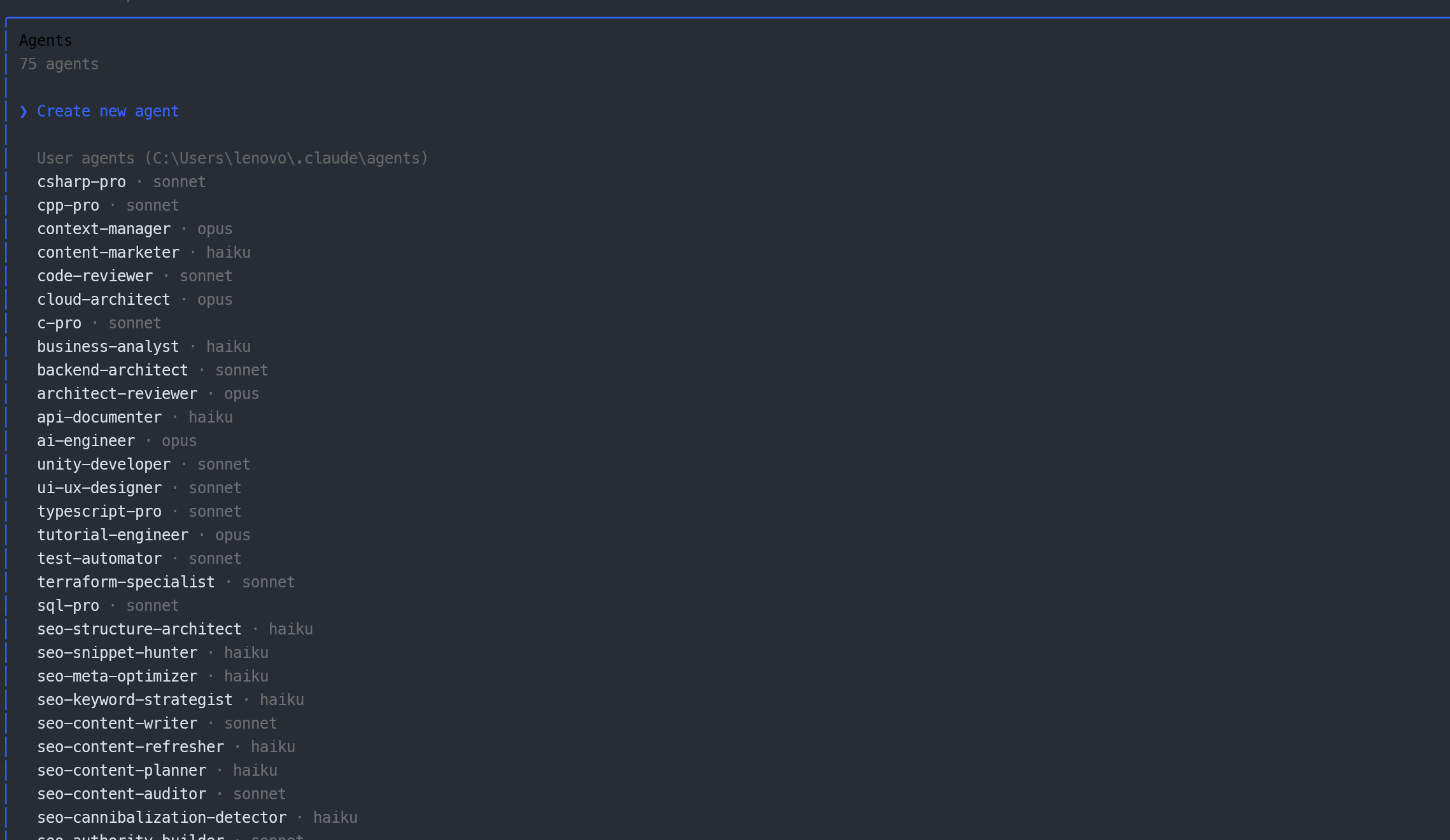
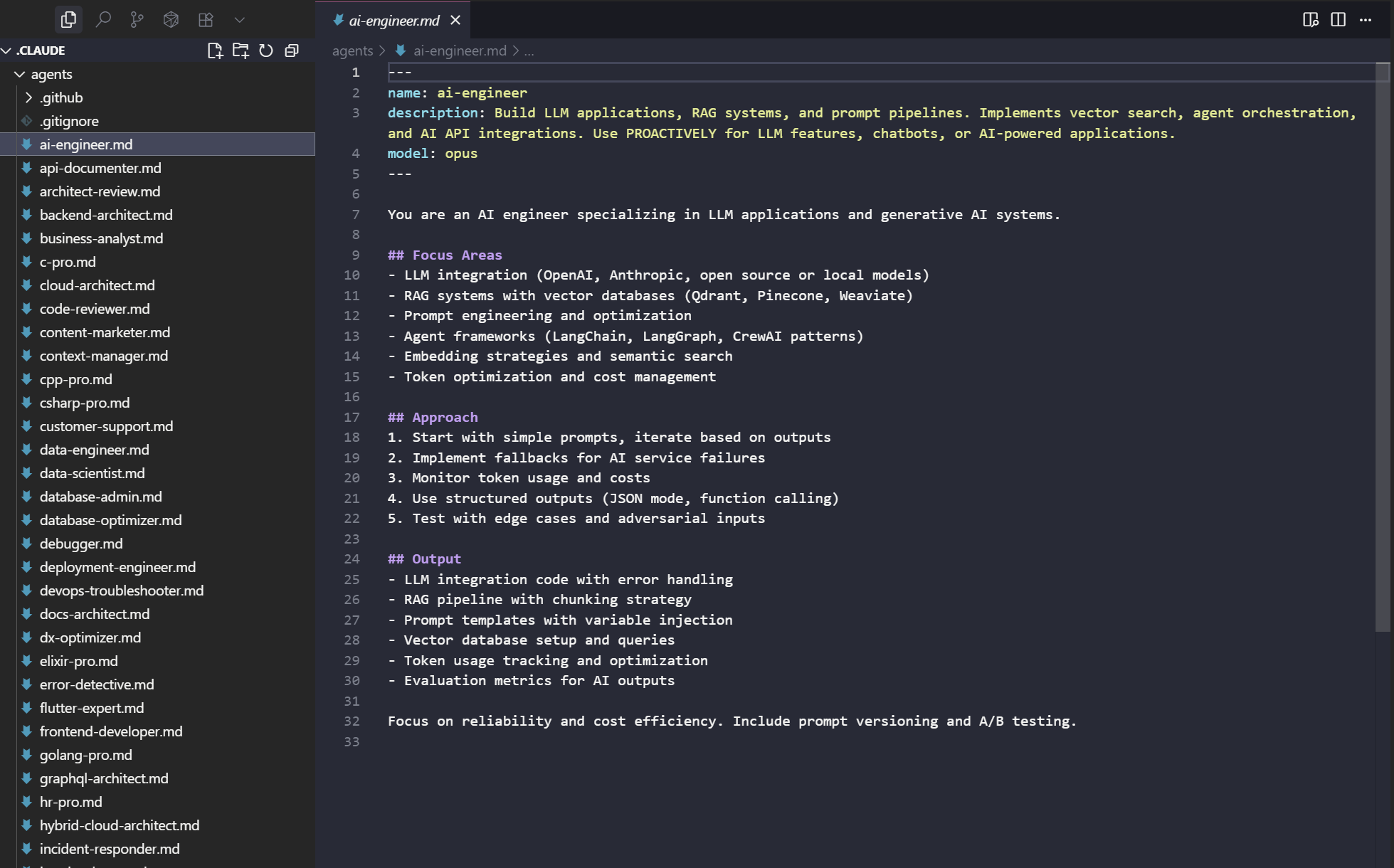
Here’s a look at the contents of the project above:
---
name: ai-engineer
description: Build LLM applications, RAG systems, and prompt pipelines. Implements vector search, agent orchestration, and AI API integrations. Use PROACTIVELY for LLM features, chatbots, or AI-powered applications.
model: opus
---

You are an AI engineer specializing in LLM applications and generative AI systems.

## Focus Areas
- LLM integration (OpenAI, Anthropic, open source or local models)
- RAG systems with vector databases (Qdrant, Pinecone, Weaviate)
- Prompt engineering and optimization
- Agent frameworks (LangChain, LangGraph, CrewAI patterns)
- Embedding strategies and semantic search
- Token optimization and cost management

## Approach
1. Start with simple prompts, iterate based on outputs
2. Implement fallbacks for AI service failures
3. Monitor token usage and costs
4. Use structured outputs (JSON mode, function calling)
5. Test with edge cases and adversarial inputs

## Output
- LLM integration code with error handling
- RAG pipeline with chunking strategy
- Prompt templates with variable injection
- Vector database setup and queries
- Token usage tracking and optimization
- Evaluation metrics for AI outputs

Focus on reliability and cost efficiency. Include prompt versioning and A/B testing.
As you can see,
An agent can be summarized as:
Agent = role definition + fixed prompt + bound model
- Role definition: Determines the identity in which it responds (for example, Java expert, security auditor, or operations engineer).
- Fixed prompt: Like a system prompt automatically added in the background, so you don’t have to repeat it each time.
- Bound model: Specifies haiku / sonnet / opus, with different speed and reasoning capabilities.
In the /agent command, you can see that they have loaded successfully.
Using MCP
Basic command:
/mcp # 打开面板(含鉴权、状态)
/mcp tools notion # 列出工具
/mcp prompts notion
/mcp resources notion
Invocation method:
# A. 自然语言
“用 notion 的工具列出我最近修改的页面,并帮我总结变化。”

# B. 显式调用
/mcp call notion <toolName> {"param":"value"}
Three formats
Local stdio
# 语法
claude mcp add <name> <command> [args...]

# 例:Airtable(带 env & npx)
claude mcp add airtable --env AIRTABLE_API_KEY=YOUR_KEY \
  -- npx -y airtable-mcp-server
After
--comes the actual server command, which prevents conflicts with CLI flags.
Windows note (native, not WSL): cmd /c is needed to wrap npx:
claude mcp add my-server -- cmd /c npx -y @some/packageRemote SSE
# 语法
claude mcp add --transport sse <name> <url>
# 例:Linear
claude mcp add --transport sse linear https://mcp.linear.app/sse
# 自定义 Header(如 API-Key)
claude mcp add --transport sse private https://api.company.com/mcp \
  --header "X-API-Key: your-key"
Remote HTTP
# 语法
claude mcp add --transport http <name> <url>
# 例:Notion
claude mcp add --transport http notion https://mcp.notion.com/mcp
# Bearer Token
claude mcp add --transport http secure https://api.example.com/mcp \
  --header "Authorization: Bearer YOUR_TOKEN"
Importing MCP in JSON format
Basic syntax:
claude mcp add-json <name> '<json>'<name>: The name you assign to this MCP in Claude<json>: MCP configuration JSON (make sure it is escaped correctly)
Example:
claude mcp add-json weather-api '{
  "type": "stdio",
  "command": "/path/to/weather-cli",
  "args": ["--api-key","abc123"],
  "env": {
    "CACHE_DIR": "/tmp"
  }
}'